

Tell us about your business
Answer the onboarding questions so the Fastcom team can set up your AI agent, then wait for your business to be approved
Answer a short set of questions about your business, and the Fastcom team uses your answers to set up your AI agent. Fastcom shows these questions to the owner right after they create an organization. The rest of the app opens once the Fastcom team approves your business.
Teammates you invite as anything other than Owner never see these questions.
Before you start
Have these ready:
- Your business name and a Bangladeshi mobile number the team can reach you on.
- The link to your Facebook Page. It's required, because the Page is where your AI agent connects first.
- Links to your Instagram profile and website, if you have them.
- Your product or service list, as a Google Sheet or Doc link or as a file.
- Your customers' most common questions, with your answers.
- Any documents that help the AI agent: price lists, guidelines or payment instructions.
You can switch the questions to Bengali at any time with the বাংলা button in the top-left corner. Your answers are saved in this browser as you go, so you can close the tab and come back. Files you attach aren't saved until you submit.
Answer the questions
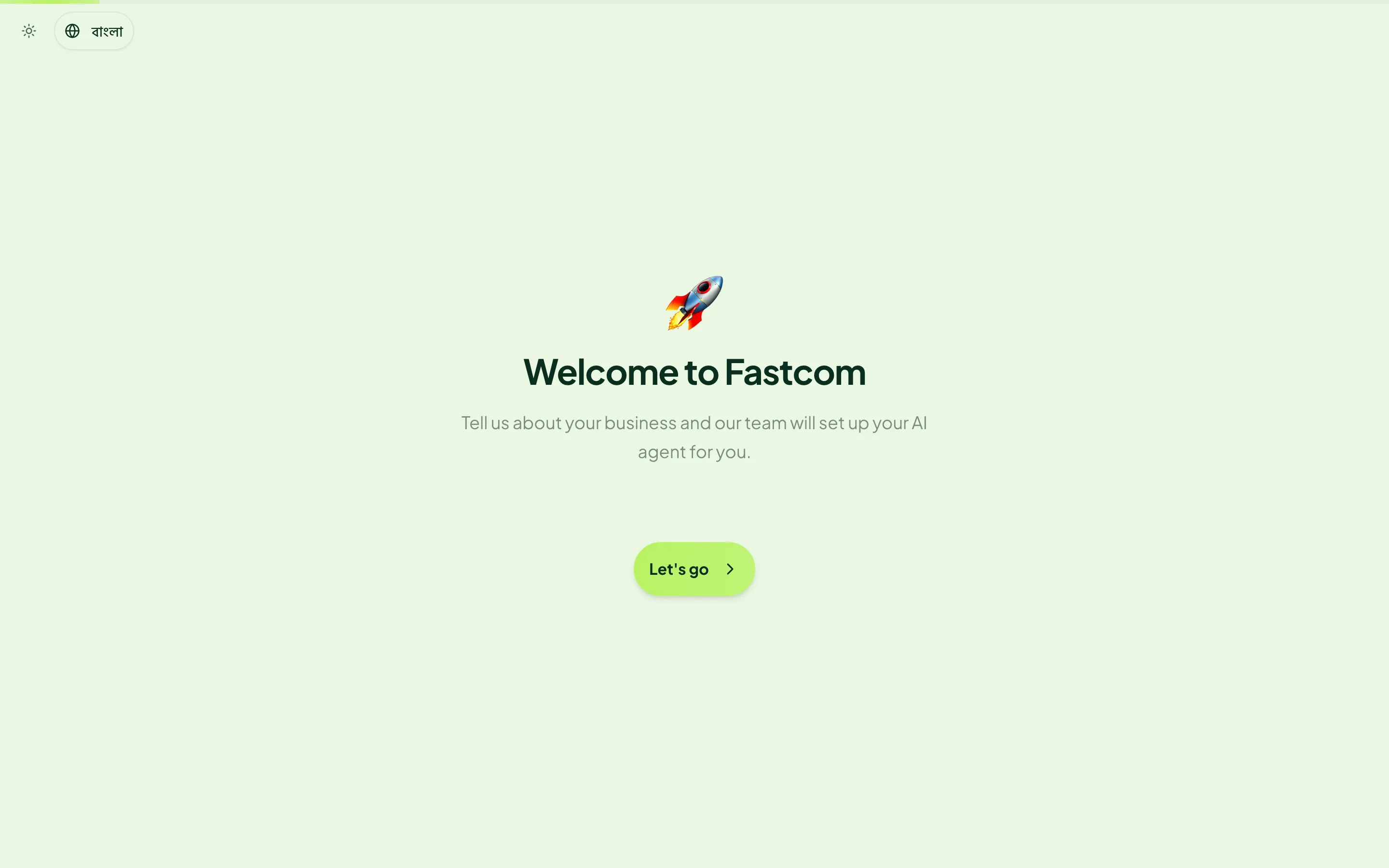
Click Let's go on the Welcome to Fastcom screen. Each question is one step: click Continue to move on and Back to return. Optional steps have Skip for now in the top-right corner.
- What type of business do you run? Pick Service-based or E-commerce. Your choice changes some of the later steps.
- Tell us about your business Enter your Business name (at least 2 characters) and Phone (BD), a Bangladeshi mobile number such as 01712345678. You can start the number with +88.
- Where can we find you online? Enter your Facebook page link. Instagram and Website are optional.
- Which platforms should your AI work on? Pick at least one of Messenger, Instagram DM and WhatsApp. WhatsApp needs a WhatsApp Business account connected to your Meta Business portfolio.
- Which languages should your AI speak? Pick at least one of বাংলা, English and Banglish (Bengali written in English letters). All three are selected to start with, and the AI agent replies in the language each customer uses.
- How should we learn about your catalog?
Pick one option.
You can add the details now or later.
- Link a Google Sheet or Doc: paste one or more links.
- I'll upload to Fastcom inventory myself (E-commerce only): you add products yourself after approval.
- I'll upload a file containing all the info: attach PDF, DOC, DOCX, XLSX, CSV or TXT files.
- What's your return & refund policy? (E-commerce only, optional) Write it in plain language; the AI agent rephrases it when customers ask.
- How do customers book your service? (Service-based only) Pick AI books directly using my calendar, AI collects preferred time and sends it to me or AI just shares my booking link, and add a Booking link if you have one.
- What info should the AI collect from a new lead? (Service-based only) Pick at least one detail: Name, Phone, Email, Location, Budget, Timeline or Project type. Name and Phone are selected to start with. Add anything else under Anything else?.
- What do customers ask you most? (optional) Fill in a Question and Answer for each of your most common questions, and click Add another for more. Three to five good answers improve your AI agent more than anything else you add here.
- When should the AI hand over to a human? Pick the situations where a person on your team should take over, or describe your own under Other situations. Customer explicitly asks for a human and AI doesn't know the answer are selected to start with. See .
- Your agent's personality Describe how the AI agent should sound under Personality & tone (at least 10 characters). List anything it must never do under Things the AI must never do.
- Got any documents to share? (optional) Attach PDF, DOC, DOCX or TXT files. You can attach several.
Review and submit
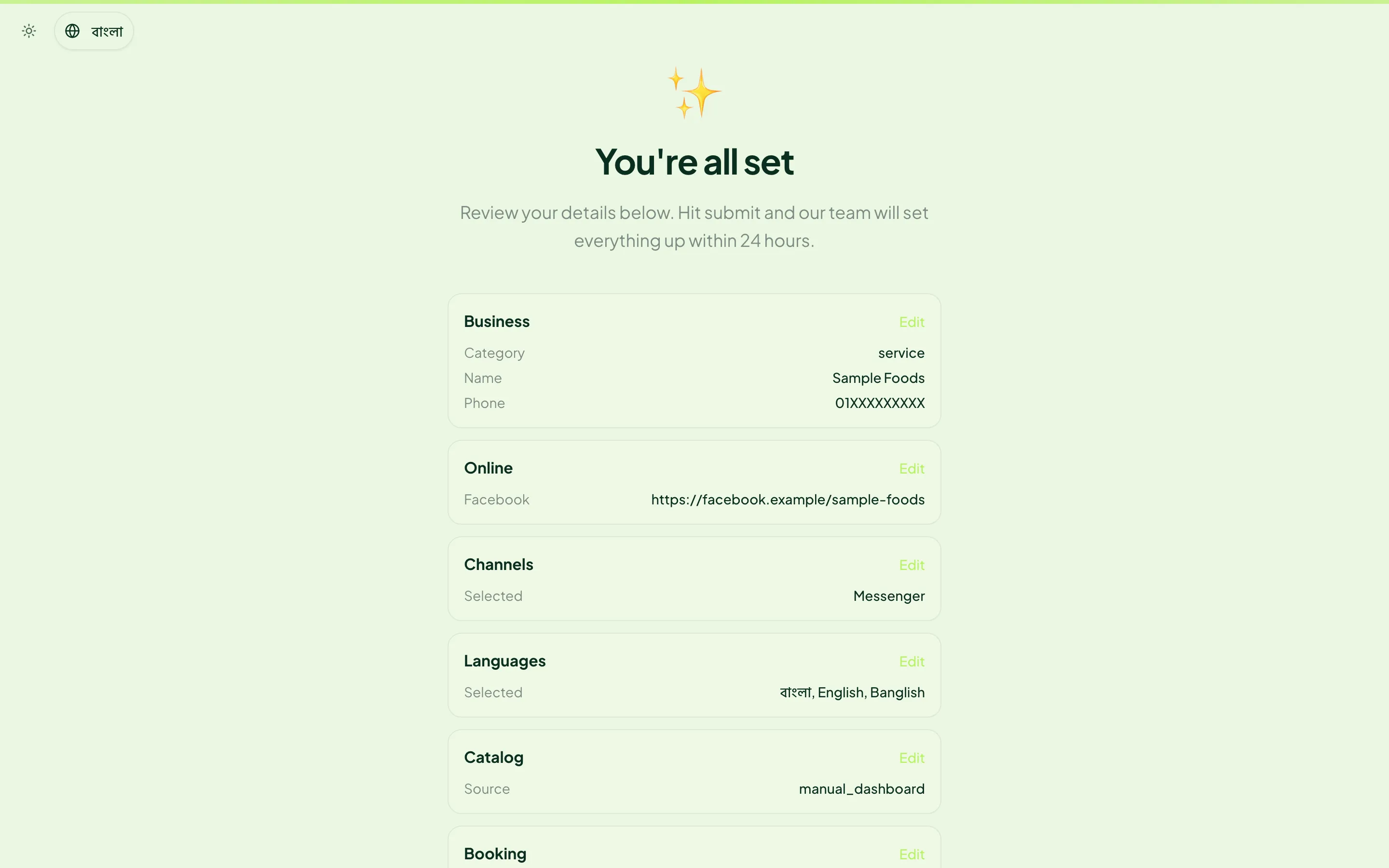
The last step, You're all set, shows a summary of your answers. Click Edit next to any section to go back to that step, then click Submit.
Wait for approval
After you submit, Fastcom shows Application under review until the Fastcom team approves your business. During the review the team sets up your AI agent from your answers. Reload the page to check; once your business is approved, the app opens.
To onboard a second business, click Submit for another business.
If your submission isn't approved, Fastcom shows the questions again so you can correct your answers and submit them again. If you have questions about your review, contact support.
Change your answers later
AI & Automation › AI Onboarding lists the forms you've submitted, with their Status: Pending, Approved or Rejected.
Open AI Onboarding- Click Edit next to a submission.
- Change your answers, then click Submit on the last step.
Fastcom shows Changes saved!. Editing your answers doesn't change an AI agent that is already live. To change what a live AI agent says, see Bots & AI.
To onboard another business, click New submission.
You need AI Onboarding: Read to open the page.
Last reviewed 29 October 2026