

Connect your Facebook Page
Connect the Facebook Page your customers message, so its Messenger conversations arrive in Fastcom
Connect your Facebook Page to Fastcom so your team can answer its Messenger conversations, and your AI agent can reply to them. The Facebook Page is the first channel most businesses connect. To add Instagram, WhatsApp, email, your website or other channels, see Channels.
Before you start
- You need Facebook Pages: Write in your organization, which the Owner and Admin roles have by default. The connect buttons check for these two roles by name, so someone with a custom role can't use them, whatever its permissions.
- Your Facebook account must be able to manage the Page.
- A Facebook Page can belong to only one Fastcom organization. A Page that is already connected to another organization is skipped.
Connect the Page
Open the Messenger inbox- Open the Messenger inbox: in the inbox, click the Messenger tab at the top.
- If no Page is connected yet, click Connect Facebook Page. Once you have a Page, you add more with Login with Facebook at the top of the inbox sidebar.
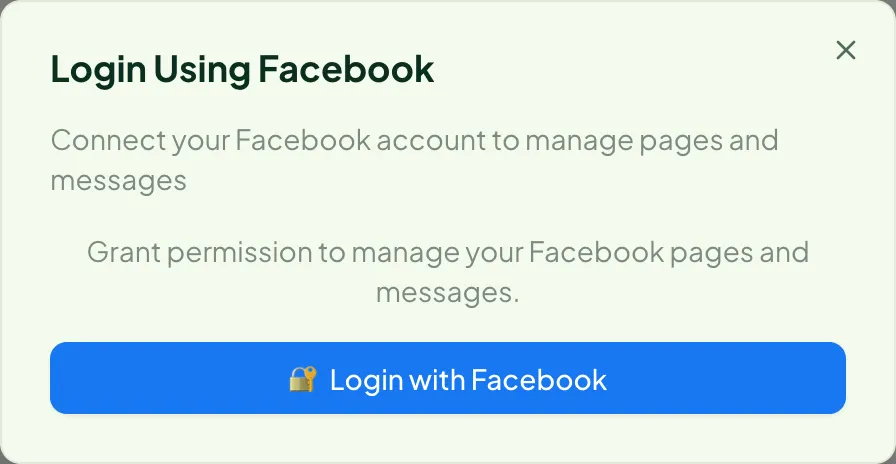
- In the Login Using Facebook window, click Login with Facebook.
- In the Facebook window, sign in, choose your Pages and allow the permissions Fastcom asks for. Fastcom needs them to read and send your Page's messages and comments.
- Wait while Fastcom shows Syncing with Facebook....
When it finishes, Fastcom shows Setup Complete! and your Pages are connected to your organization. New Messenger conversations now arrive in your inbox.
If Fastcom shows Partially Connected, some Pages were skipped. The message under Some pages were skipped names each one and why: Already connected to another organization or Failed to connect. Click Add another account to try again or to connect Pages from a different Facebook account.
Check the connection
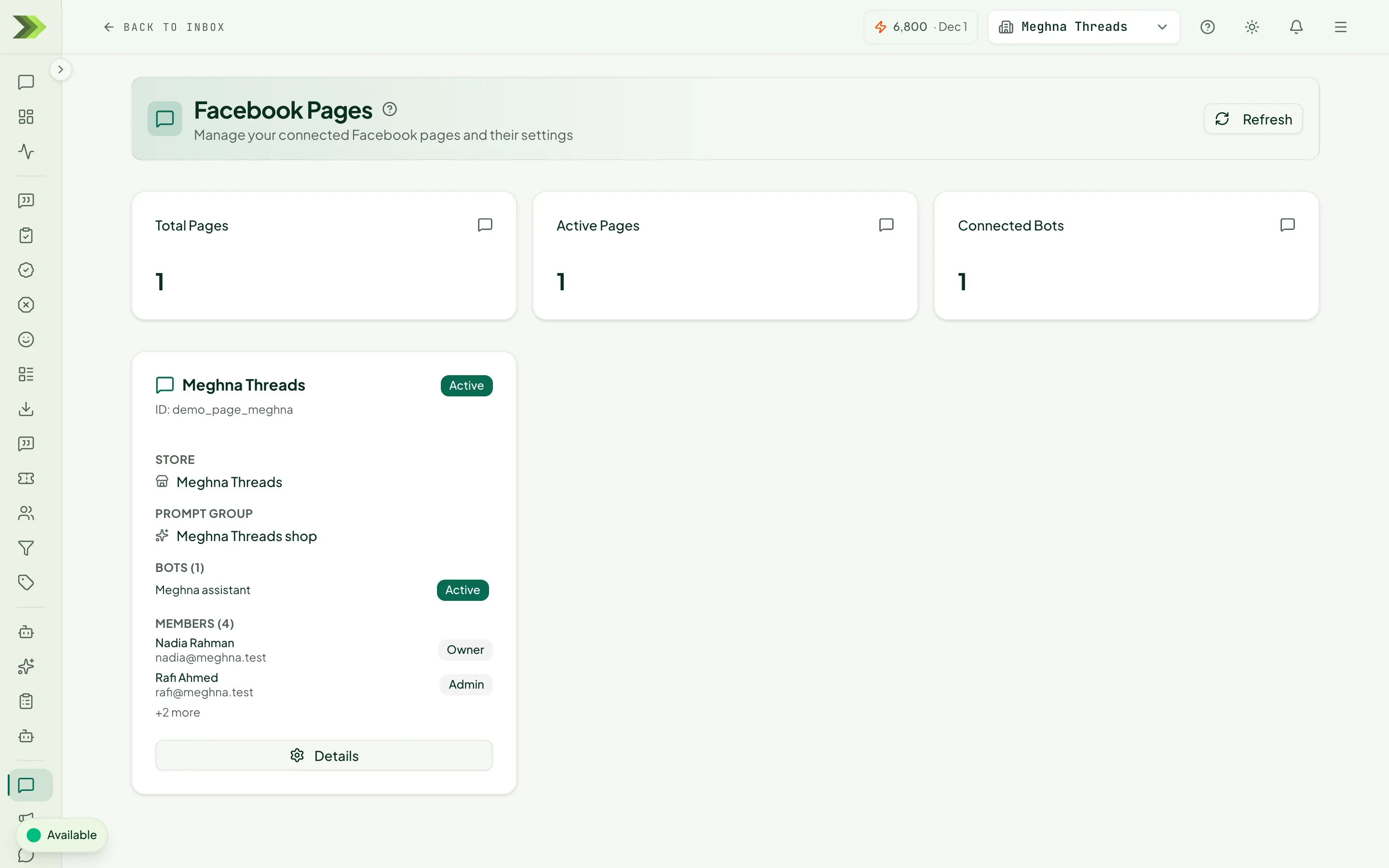
Channels › Facebook Pages shows a card for each connected Page.
Open Facebook Pages- Active means the Page is connected and Fastcom has access to it.
- Reconnect needed means Facebook withdrew Fastcom's access to the Page. Connect the Page again with the steps above to fix it.
The card also shows the AI agents connected to the Page under Bots. No bots connected means no AI agent answers on this Page yet; see Turn on your AI agent.
You need Facebook Pages: Read to open this page.
Last reviewed 29 October 2026