

Invite your team
Invite teammates to your organization by email, choose the role each one gets, and accept an invitation you received
Invite the people who answer customers with you, and give each one a role that decides what they can see and do. Teammates you invite skip the business onboarding questions and go straight into your organization. That includes someone invited as Owner, once your organization's onboarding has been approved.
Before you start
You need Organization: Members to invite people. Without it, the Invite Member button doesn't appear. By default, the roles hold these permissions on the organization:
| Area | Owner | Admin | Member |
|---|---|---|---|
| Organization | All | Read, Manage, Members, Roles | - |
Invite a teammate
Open Organization- Go to Settings › Organization.
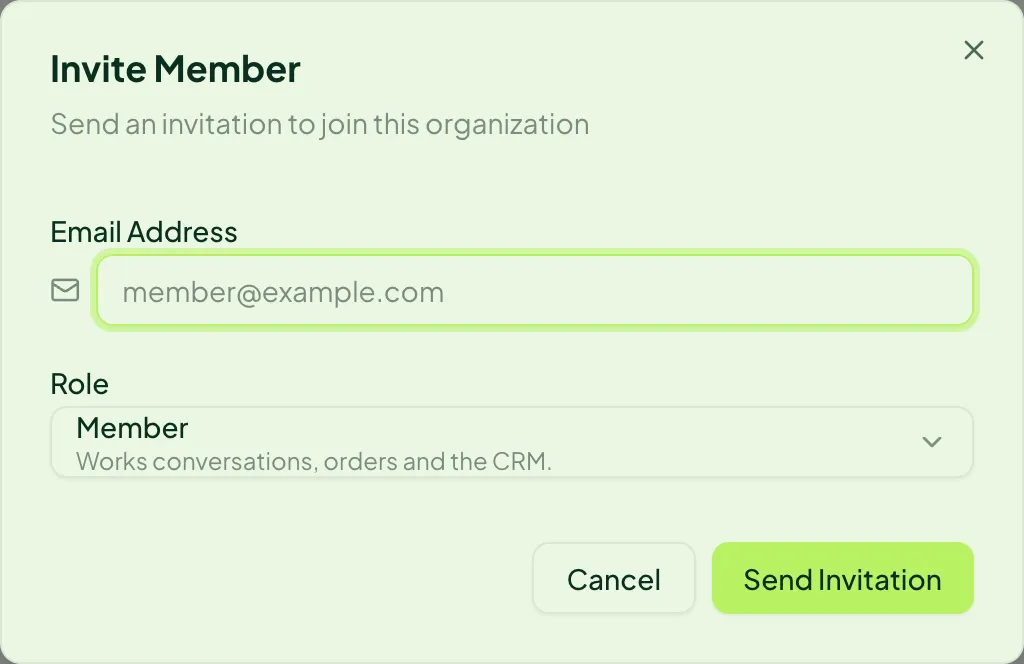
- Click Invite Member.
- Enter their Email Address.
- Pick a Role. Member is selected to start with. The list shows every role in your organization, including custom ones, with a short description of each. Only the owner can invite someone as Owner.
- Click Send Invitation.
Fastcom emails the invitation and copies the invitation link to your clipboard, so you can also send it yourself, for example on WhatsApp. If the message says email could not be sent, the invitation still exists: send the copied link to your teammate.
An invitation expires after 48 hours. To resend one, invite the same email address again: Fastcom updates the role, restarts the 48 hours and sends a new email. An organization can have up to 100 invitations waiting at once.
Your teammate appears under Members on the same page once they accept.
Accept an invitation
If someone invited you to their organization:
- Open the link in the invitation email, or the link your teammate sent you.
- Sign in, or create an account with the same email address the invitation was sent to.
- Open the invitation:
- If you aren't in any organization yet, Fastcom shows it on the Set up your workspace screen under Pending Invitations. Click it.
- If you already belong to an organization, go to Settings › Invitations and click View next to the invitation.
- In Organization Invitation, click Accept. Click Decline if you don't want to join.
You can also join with the link alone: on Set up your workspace, click Have an invite? Join an existing org, paste the link into Invitation ID or Link, and click Join Organization.
Open InvitationsOnce you join, Fastcom opens the parts of the app your role allows. To start answering customers, see Inbox.
Last reviewed 29 October 2026