

Turn on your AI agent
Find the AI agent the Fastcom team set up for you, switch it on, and choose the channels it answers on
Check that your AI agent is on and answering on the right channels. The Fastcom team builds your first AI agent from your onboarding answers and connects it to your channels, so you don't create it yourself.
Find your AI agent
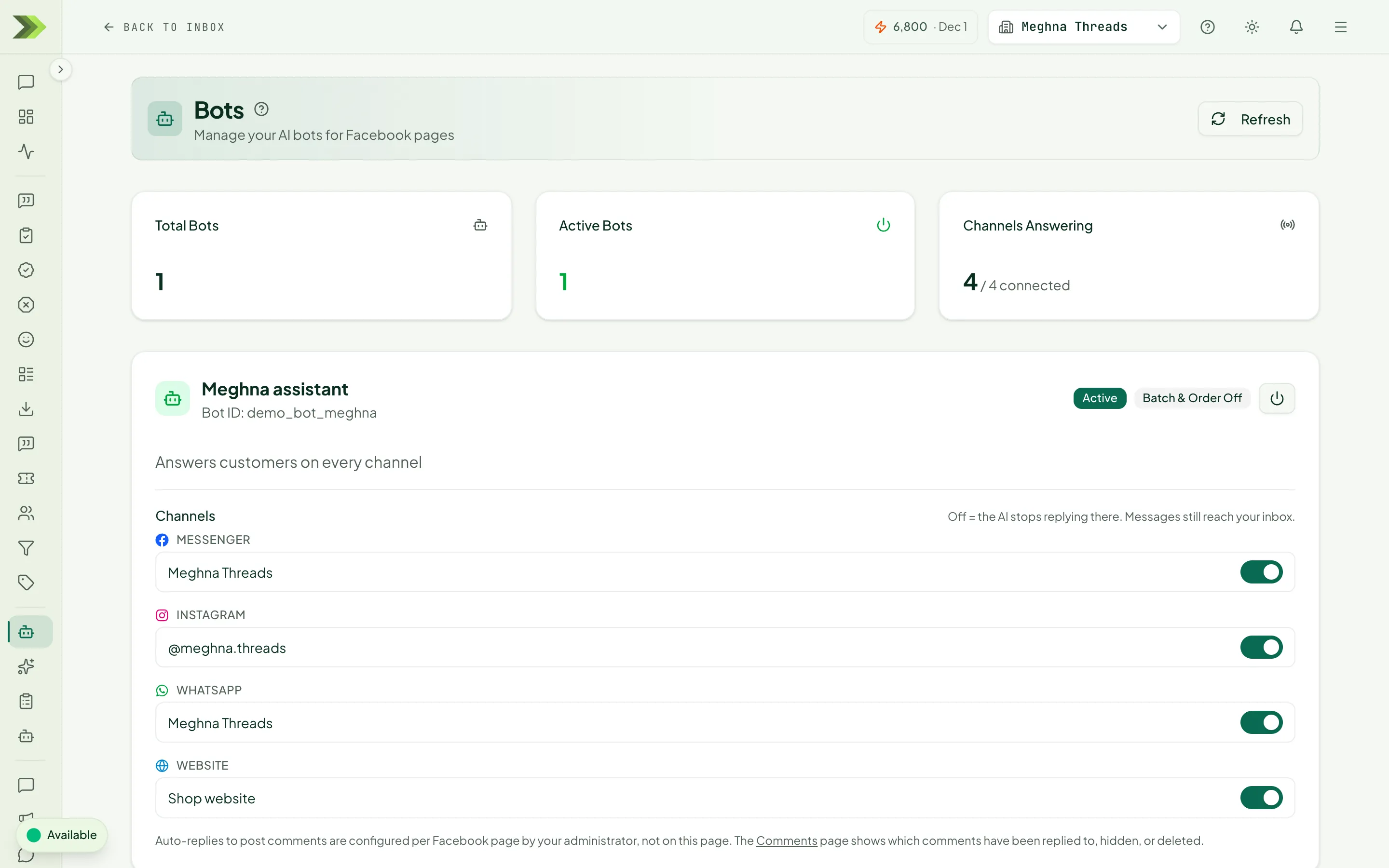
AI & Automation › Bots shows a card for each AI agent in your organization.
Open BotsEach card shows the AI agent's name, whether it is Active or Inactive, and the channels it is connected to under Channels.
If the page shows No bots created yet, your AI agent isn't ready yet; contact support.
You need Bots: Read to open the page, and Bots: Write to use the switches below.
Switch the AI agent on or off
Click the power button on the AI agent's card to switch it on or off everywhere at once. While it's off, the per-channel switches are greyed out, but Fastcom remembers how you set them.
Choose where it answers
Under Channels, each connected channel has its own switch, grouped by Messenger, Instagram, WhatsApp, Website and Mobile app.
- Turn a switch on to let the AI agent reply on that channel.
- Turn it off to stop the AI agent replying there. Messages still reach your inbox, so your team can answer them.
When a group has more than one channel, a group switch turns them all on or off together.
If a channel says Channel is offline, the channel itself has lost its connection and nothing reaches the AI agent until it reconnects. For a Facebook Page, see Check the connection.
If the card says No channels connected yet, connect a channel first: start with your Facebook Page.
The AI agent needs an active plan
The AI agent replies only while your organization has an active plan with replies left. Check your plan under Settings › Billing (you need Billing: Read), and click Browse Plans to choose one.
Next steps
Last reviewed 29 October 2026