

Create your account
Sign up for Fastcom with your email or Google account, then create the organization your team works in
Create your Fastcom account, then create your organization: the workspace that holds your channels, conversations and team.
Were you invited?
Sign up with the same email address the invitation was sent to, then accept the invitation instead of creating an organization.
Sign up
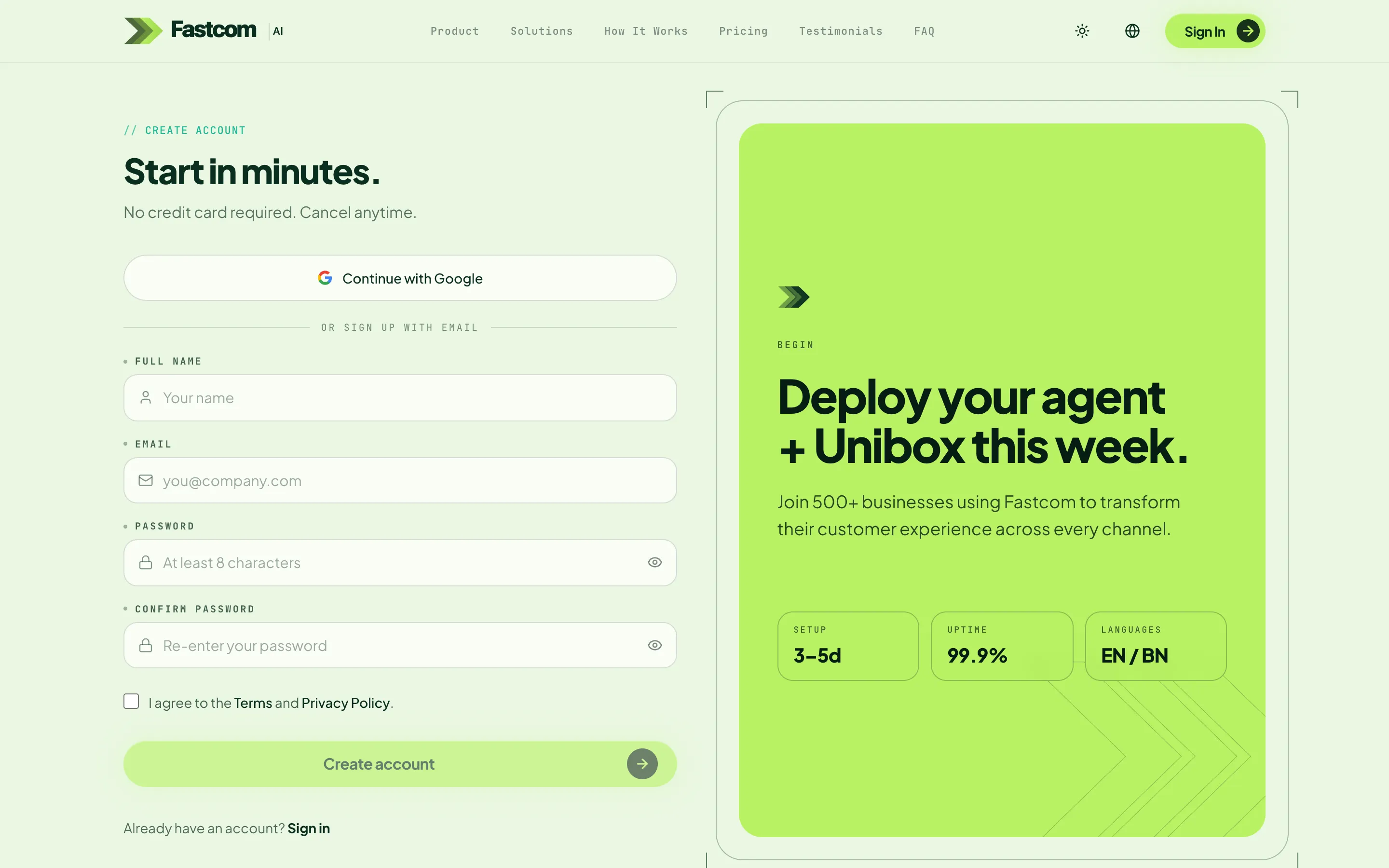
Open sign up- Open the sign-up page.
- Click Continue with Google to sign up with your Google account, or fill in the email form:
- Full name
- Password: at least 8 characters. The strength meter suggests mixing uppercase letters, lowercase letters and numbers.
- Confirm password
- Tick the box to agree to the Terms and Privacy Policy.
- Click Create account.
You don't need to confirm your email address. Fastcom signs you in and takes you to the next step.
Create your organization
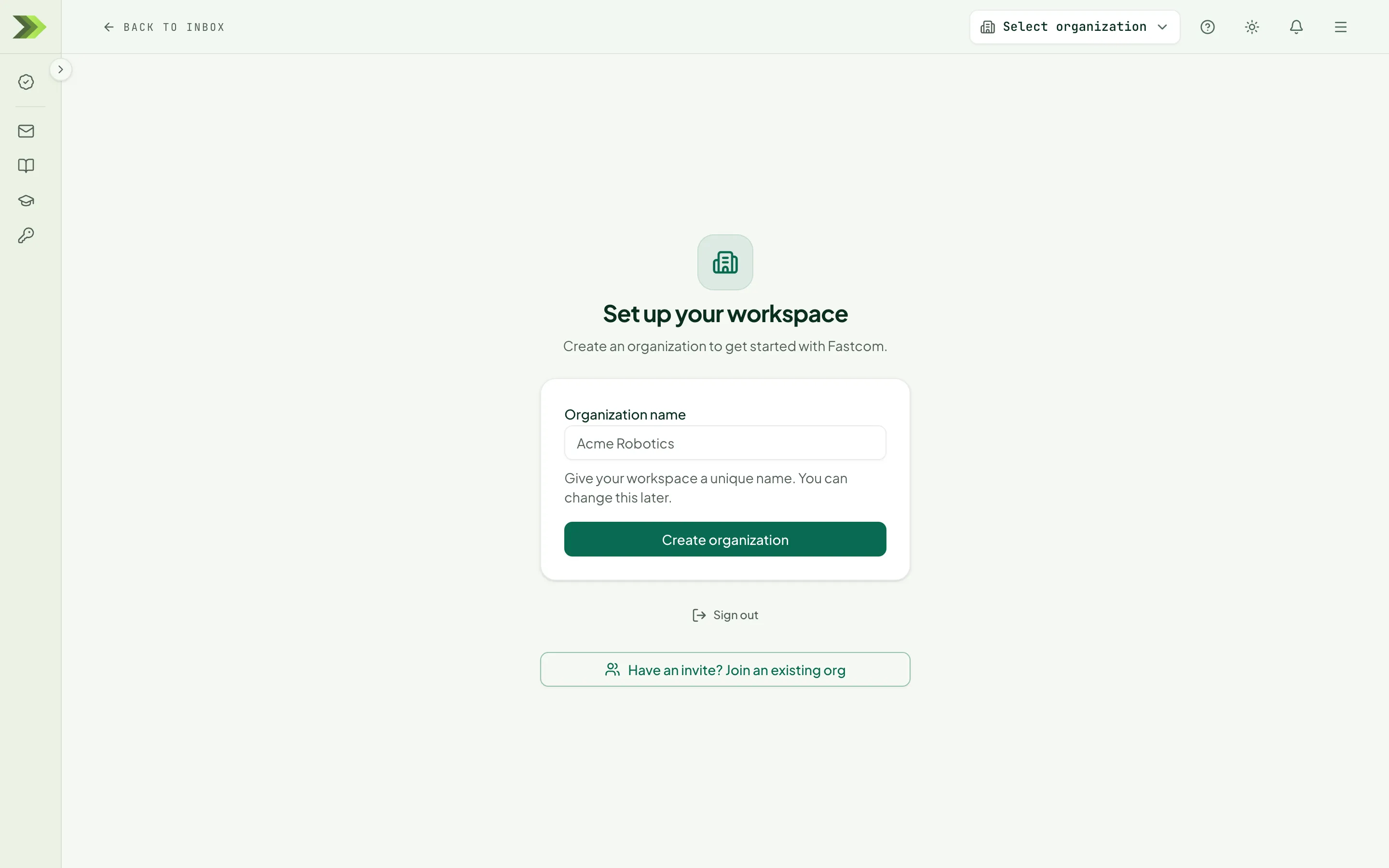
A new account doesn't belong to any organization yet, so Fastcom shows Set up your workspace.
- Enter an Organization name, usually your business name. It needs 2 to 80 characters, including at least two English letters or numbers.
- Click Create organization.
You become the Owner of the new organization, with full access to everything in it. Next, Fastcom asks you about your business: see Tell us about your business.
If you see Organization already exists, another organization uses a name that is too similar; try a different name.
Join an organization instead
The same screen lists any invitations sent to your email address under Pending Invitations. If you have an invitation link, click Have an invite? Join an existing org, paste the link into Invitation ID or Link, and click Join Organization.
Sign in later
Open sign in- Open the sign-in page.
- Click Continue with Google, or enter your Email and Password and click Sign in.
If you forget your password, click Forgot password?, enter the email you signed up with, and click Send reset link. Fastcom emails you a link to set a new password.
Last reviewed 29 October 2026