

Connect Gmail, Outlook or IMAP mailboxes so their email arrives as conversations you answer from the inbox
Connect a mailbox and every email it receives arrives in the inbox as a conversation, which your team can answer from Fastcom. You connect and manage mailboxes under Channels › Email Accounts.
Open Email AccountsTurn on email
Email is off for a new organization. Until it is turned on, the page says Email isn't enabled for your organization. Contact us to turn it on. Contact Fastcom support to turn it on and to set how many mailboxes you can connect.
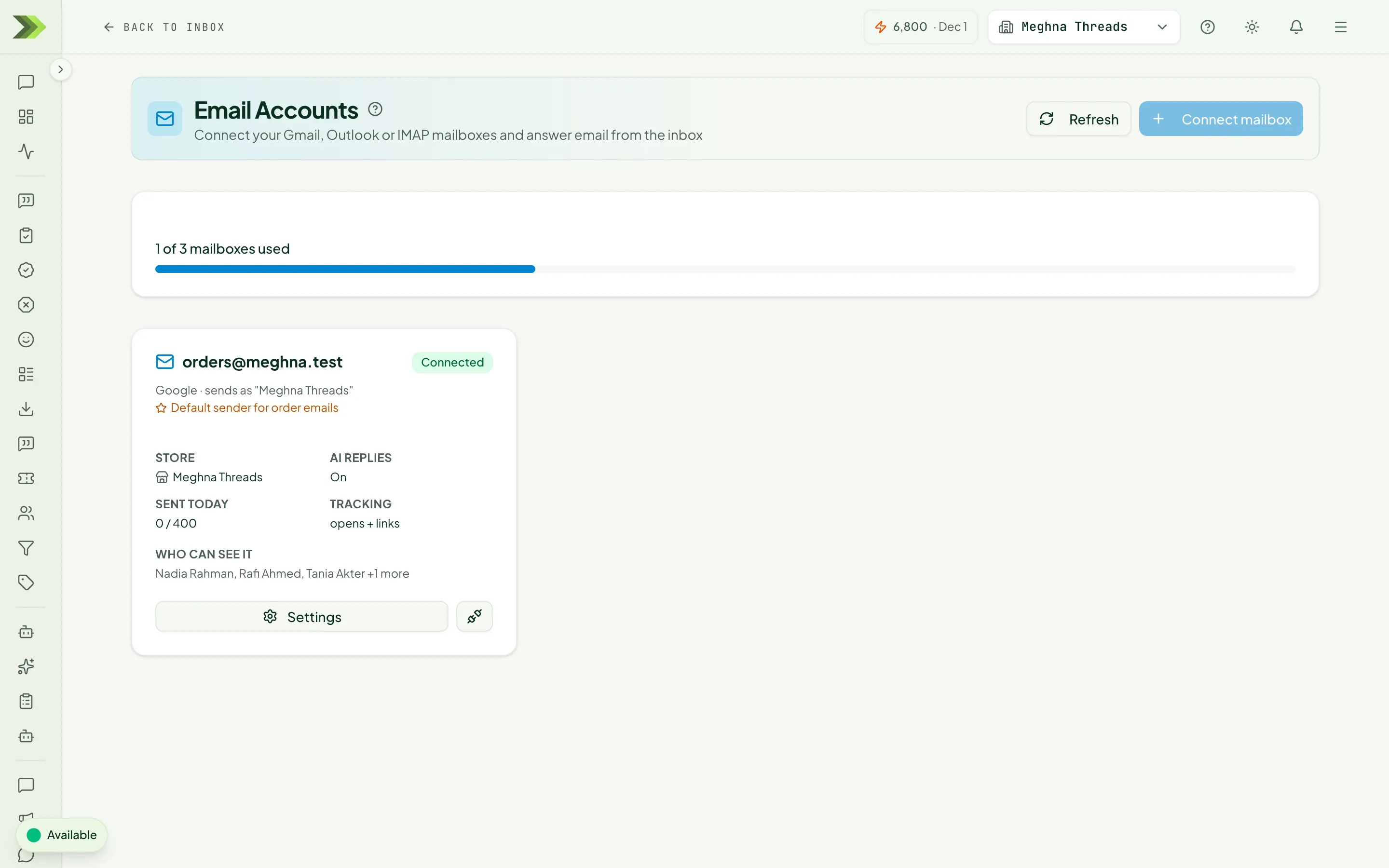
Once email is on, the page shows how many you use, for example 1 of 3 mailboxes used. Disconnected mailboxes don't count against your limit.
Connect a mailbox
You need Email Accounts: Write.
- Click Connect mailbox.
- A secure sign-in page opens. Choose Google, Outlook or another mailbox over IMAP, and sign in to it.
- You come back to Channels › Email Accounts, which shows Mailbox connected. It can take a minute to appear.
If you cancel or the sign-in fails, the page shows The mailbox was not connected. You can try again. When you have used all your mailboxes, Connect mailbox is disabled; hover over it to see why, and contact support to add more.
Read a mailbox's card
Each card shows the address, the provider and a status:
| Status | What it means |
|---|---|
| Connected | Email is flowing. |
| Connecting | The connection is still being set up. |
| Sign-in needed | The mailbox needs you to sign in again. Click Reconnect. |
| Error | Something went wrong with the mailbox. Click Reconnect. |
The card also shows the Store, whether AI replies are On or Off, how many emails were Sent today out of the daily limit, which Tracking is on, and Who can see it.
Change a mailbox's settings
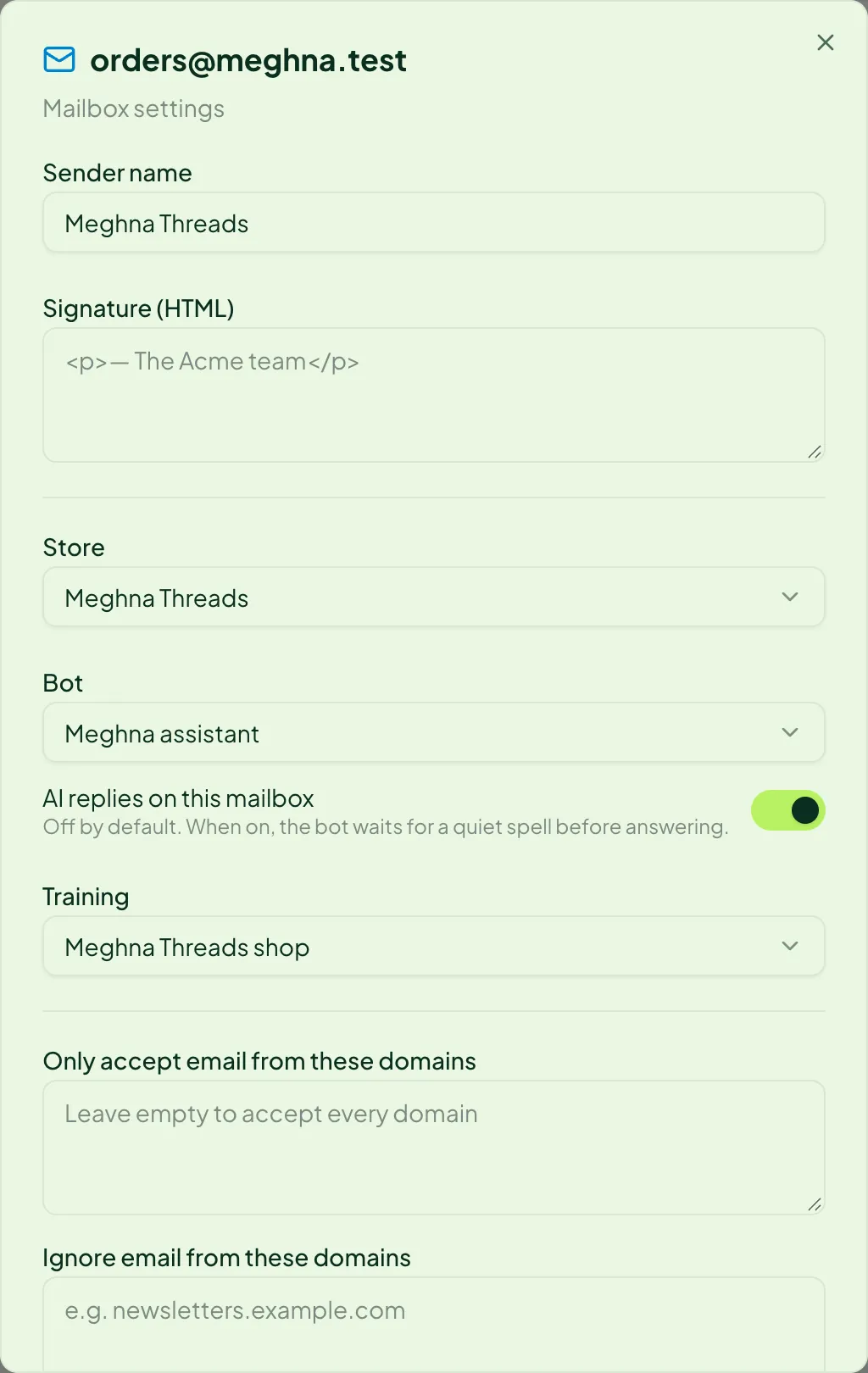
Click Settings on the mailbox's card, change what you need, then click Save. You need Email Accounts: Write.
- Sender name: the name your replies come from, for example "Acme Support".
- Signature (HTML): added to your replies.
- Store: the store the mailbox is linked to.
- Bot and AI replies on this mailbox: the bot that answers this mailbox, and whether it replies. AI replies are off by default; when they are on, the AI agent waits for a quiet spell in the thread before it answers.
- Training: the the AI agent answers from.
- Only accept email from these domains: leave it empty to accept every domain.
- Ignore email from these domains: for example newsletters. Write one domain per line or separate them with commas; subdomains are included.
- Daily send limit: a whole number from 1 to 2000, 400 by default. Keep it under your provider's own limit: about 500 a day for Gmail and about 2000 for Google Workspace.
- Track opens (approximate) and Track link clicks: both on by default.
- Default sender for order emails: makes this mailbox the one your order emails are sent from. Only one mailbox can be the default, and only a Connected one can be chosen.
Reconnect a mailbox
When a mailbox shows Sign-in needed or Error, the card says what is wrong and shows Reconnect.
- Click Reconnect on the card.
- Sign in to the mailbox again on the page that opens.
- You come back to Fastcom, which shows Mailbox reconnected.
Reconnecting doesn't use another mailbox from your limit.
Disconnect a mailbox
- Click the disconnect icon on the mailbox's card.
- Click Disconnect to confirm.
New email to that address stops coming into the inbox, and you can't reply from it any more. Its conversations stay in the inbox, and it moves to the Disconnected list at the bottom of the page. You can connect the same mailbox again later.
Who can see a mailbox
Access to a mailbox's conversations comes from each member's role. To change who sees it, edit the roles in Settings › Organization. The Email tab appears in the inbox for members who can reach at least one mailbox.
Last reviewed 29 October 2026