

Facebook Ads
See which Facebook ads bring customers to your Messenger and WhatsApp conversations, and how many each one brings
See which of your Facebook ads start conversations, and how many new customers each one brings. Fastcom records an ad when a customer clicks it and lands in a conversation with your connected Facebook Page or WhatsApp number. There is nothing to set up: once your Facebook Pages or WhatsApp numbers are connected, ads appear here as customers click them.
Open Facebook AdsTo see Channels › Facebook Ads, you need Facebook Ads: Read.
Read the page
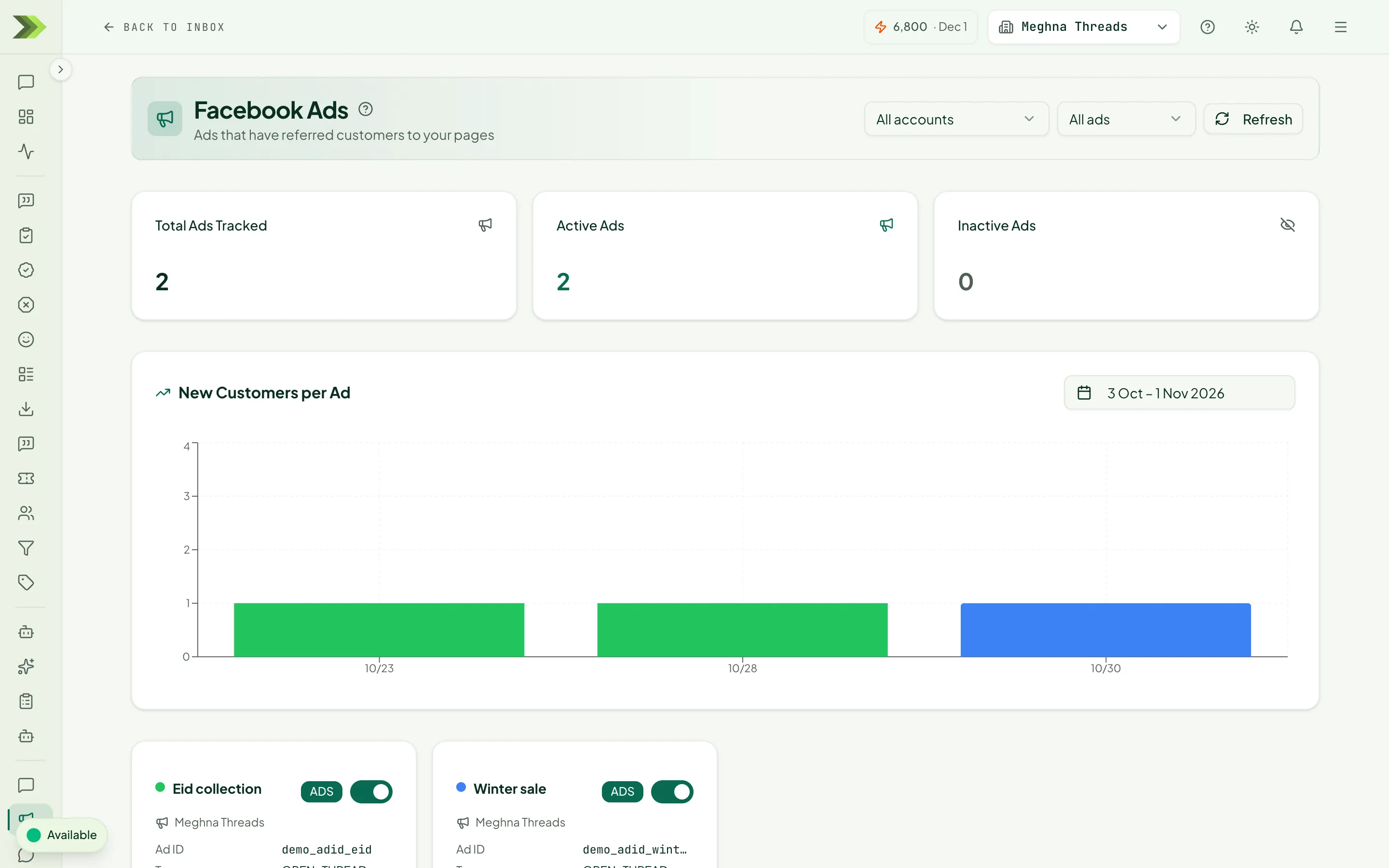
The cards at the top count Total Ads Tracked, Active Ads and Inactive Ads.
New Customers per Ad charts how many conversations each ad started per day. It shows the last 30 days at first; pick another range, such as Last 7 days or This month, from the date filter beside the chart. Only active ads are counted in the chart.
Below the chart, each ad has a card with:
- The ad's title and the Page it ran on.
- Post content: the text and images of the post the ad promoted.
- Post ID, Product ID, Ref and Type, when Facebook sends them, and a View post link.
- First seen: when a customer first arrived from this ad.
- Earlier versions of the ad, when it has pointed at more than one post. Click Show 1 earlier version (or however many there are) to list them.
Filter the ads
- Pick a Page or WhatsApp number from the All accounts list to see only its ads.
- Pick Active only or Inactive only from the All ads list.
Hide an ad
Turn off the switch on an ad's card to mark it inactive. An inactive ad is greyed out, shows Hidden from active view, and drops out of the New Customers per Ad chart. It doesn't change the ad on Facebook.
Turn the switch back on to count it again.
See the ad in a conversation
When a customer arrived from an ad, the ad also shows in that conversation in the inbox, so the person replying knows what the customer clicked. See Inbox.
Last reviewed 29 October 2026