

Connect a WhatsApp Business number to answer its chats in Fastcom, link it to a store and AI training, and create message templates
Connect a WhatsApp Business number and its chats come into the Fastcom inbox. You connect numbers from the WhatsApp inbox or from Channels › WhatsApp Accounts, and manage them, and their message templates, on that page.
Connect a WhatsApp number
You need WhatsApp Accounts: Write, which the Owner and Admin roles have by default. Without it, the connect button is disabled.
- In the inbox, click the WhatsApp tab. Open the WhatsApp inbox
- Click Add WhatsApp Account in the inbox sidebar, or in the middle of the screen if you haven't connected a number yet.
- Meta opens its WhatsApp signup window. Sign in with Facebook and follow Meta's steps to choose your business and the WhatsApp number to connect.
- When you finish, Fastcom reloads and the number appears in the WhatsApp inbox.
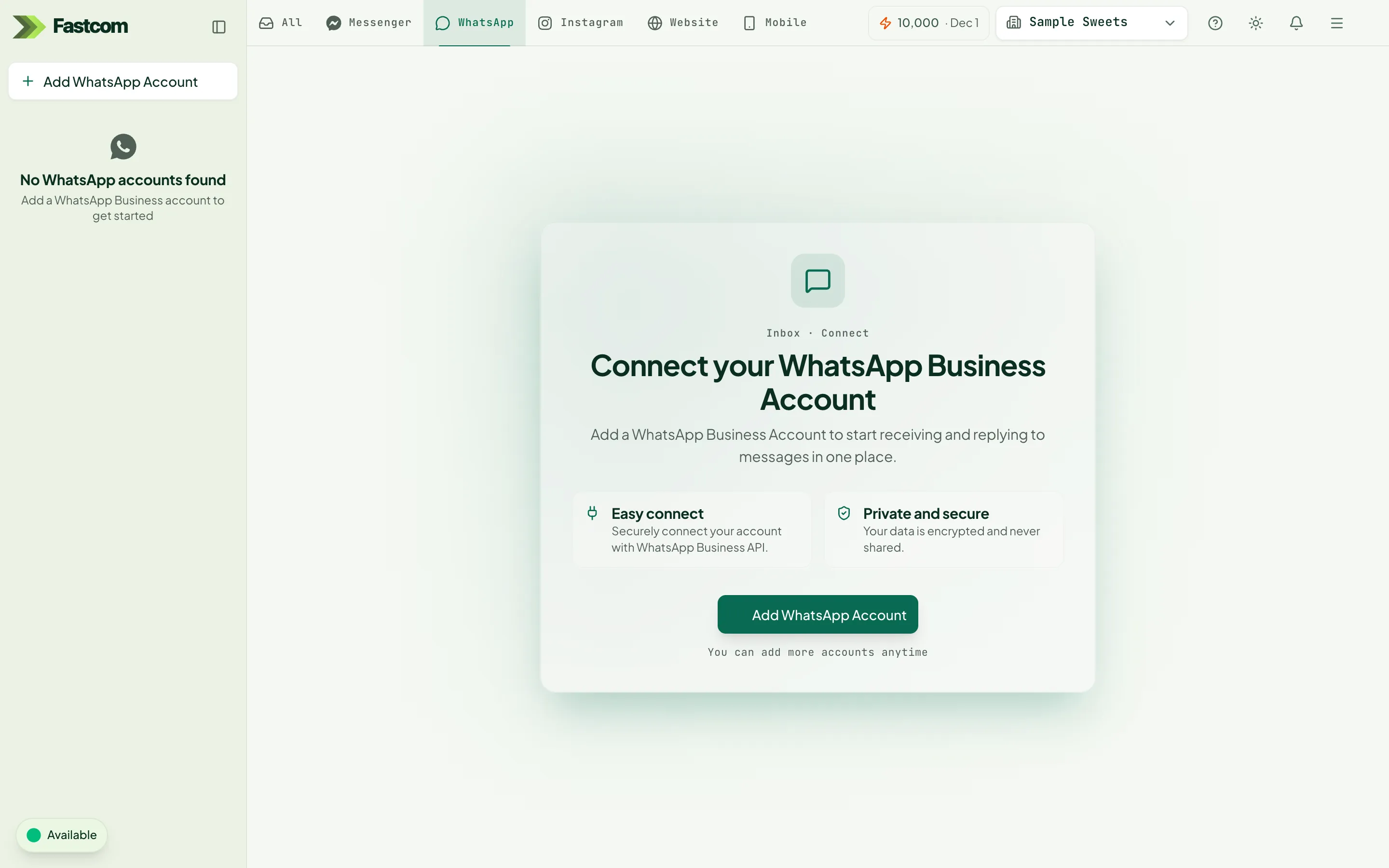
To connect another number later, click Add WhatsApp Account in the WhatsApp inbox sidebar again. Channels › WhatsApp Accounts has the same Add WhatsApp Account button, and it starts the same signup.
Manage your numbers
Channels › WhatsApp Accounts shows a card for each connected number. To see this page, you need WhatsApp Accounts: Read.
Open WhatsApp AccountsThe cards at the top count Total Accounts, Active Accounts, Connected Bots and Store Connections. Each number's card shows its business name, status, store, and the members who can reach it.
Click Details on a card to open Account Details. It shows the Phone Number ID, WABA ID and Business ID, which Meta support may ask for.
Link a number to a store
- Click Details on the number's card.
- Under Store Connection, choose a store.
- Click Connect Store, or Change Store if the number already has one.
You need Stores: Write or WhatsApp Accounts: Write.
Choose the AI training for a number
- Click Details on the number's card.
- Under Connect to Prompt Group, choose a prompt group.
- Click Connect.
You need Training: Connect to a channel.
Create a message template
WhatsApp only lets you start a conversation, or reply more than 24 hours after the customer's last message, with a message template that Meta has approved. You create templates here and send them from the inbox.
- Click + on the number's card, or click Templates and then Create New Template.
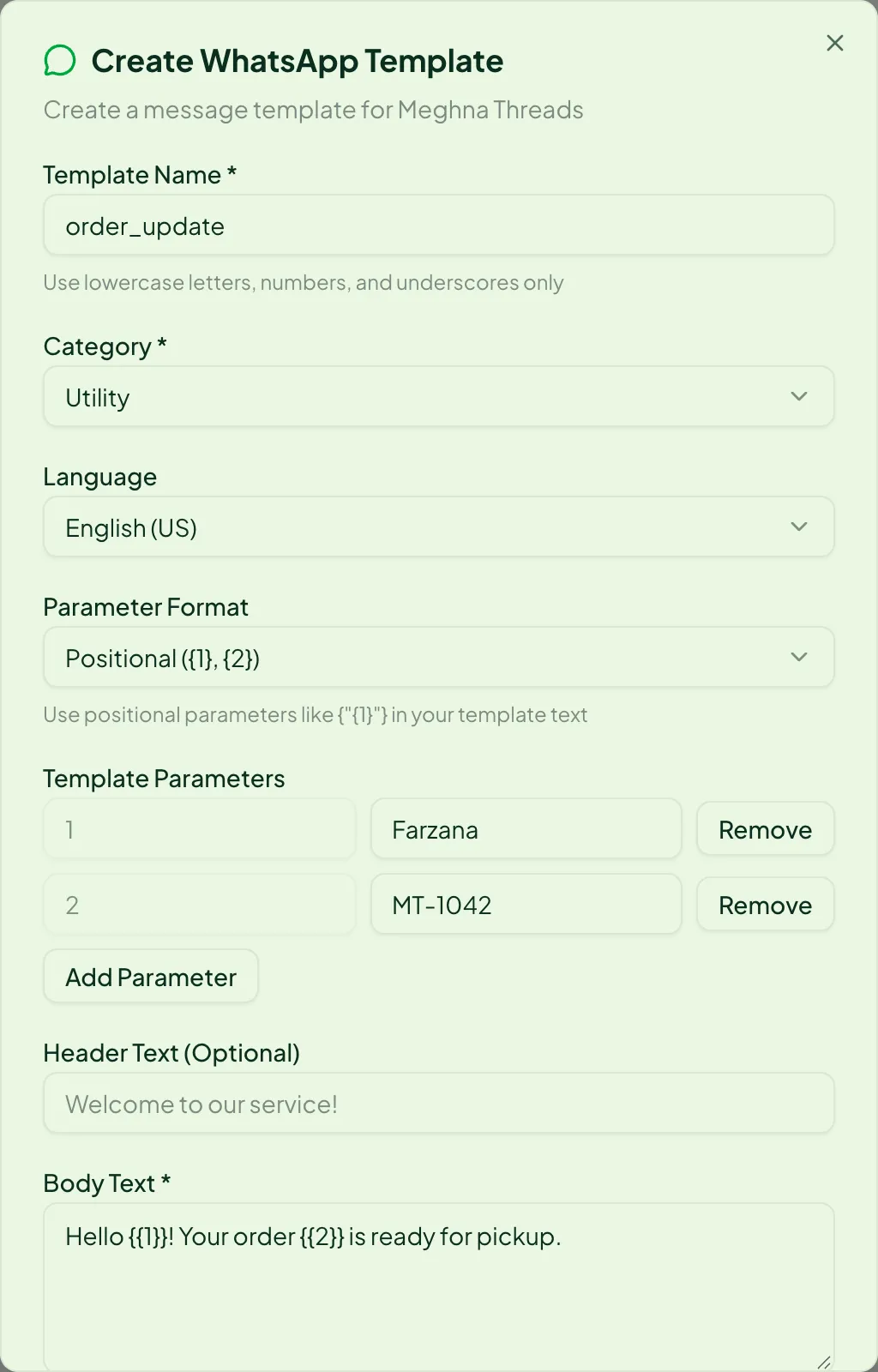
- Fill in the Create WhatsApp Template dialog:
- Template Name: lowercase letters, numbers and underscores only, for example
order_update. - Category: Utility, Marketing or Authentication.
- Language: English (US) unless you pick another.
- Parameter Format: Positional for
{{1}},{{2}}, or Named for{{first_name}}. - Body Text: the message itself, with any parameters. Fastcom adds each parameter you type to Template Parameters, where you give it an example value for Meta's review.
- Header Text, Footer Text and Button are optional. A button is a Quick Reply, a URL or a Phone Number.
- Template Name: lowercase letters, numbers and underscores only, for example
- Click Create Template.
Meta reviews each new template. Click Templates on the number's card to see every template with its status: APPROVED, PENDING, REJECTED, PAUSED or DISABLED. Click Refresh in that list to check for a decision.
To send an approved template to a customer, open their conversation in the inbox. See Inbox.
Who can see a number's conversations
Access to a number's conversations comes from each member's role. To change who sees it, edit the roles in Settings › Organization.
Last reviewed 29 October 2026