

Mobile API
Create a mobile app in Fastcom to get the API keys your own app uses to chat with your team and the AI agent
Create a mobile app in Fastcom to connect your own app, so your customers can chat with your team and the AI agent from inside it. Each mobile app gets its own API keys, and its chats arrive in the inbox under Mobile. You create and manage apps under Channels › Mobile API.
This page covers the Fastcom side. Your developers build the chat into your app with the Mobile Chat API.
Open Mobile APITo see the page, you need Mobile API: Read. To create apps, rotate keys or change settings, you need Mobile API: Write.
Create a mobile app
- Click New App.
- Give it a Name, for example "iOS app".
- Click Create.
- The Your new API keys dialog shows a Publishable key and a Secret key. Copy both now. The secret key is shown only once and can't be recovered after you close the dialog.
- Click Done.
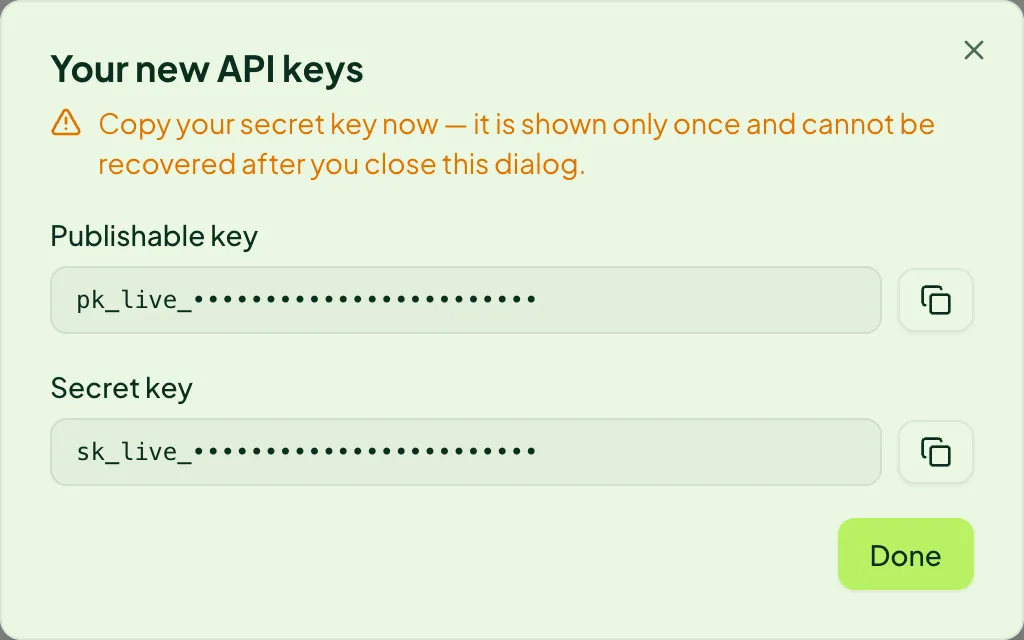
The publishable key ships inside your app. The secret key stays on your own server, which uses it to start chat sessions for your signed-in users. Keep the secret key out of your app's code.
Read an app's card
Each app's card shows:
- Active or Inactive, and the bot connected to the app, or No bot connected.
- The Publishable key, with a copy button.
- The start of the Secret key and when it was last used.
- Publishable-key token minting: whether your app can start sessions on its own, without your server.
- The Store and Prompt Group the app is connected to.
- Usage limits: new end users per hour, incoming messages per hour and incoming messages per day, with how much of each is used.
Rotate a key
If a key may have leaked, replace it.
- Click Rotate next to the Publishable key or the Secret key.
- Copy the new key from the dialog. A new secret key is shown only once.
- Click Done, and put the new key in your app or on your server.
The old key stops working as soon as you click Rotate, so update your app or server straight away. The card counts the keys you have replaced as revoked keys.
Let the app start sessions without your server
By default, only your server can start a chat session, with the secret key. Turn on Publishable-key token minting to let the app start sessions with the publishable key alone.
Use this only when your app has no server of its own. Anyone with the publishable key can then claim to be any user, so treat those users as anonymous visitors.
Connect the app to a store and AI training
- To choose the the AI agent answers from, click the pencil icon on the app's card, choose a group under Connect to Prompt Group, and click Connect. You need Training: Connect to a channel.
- To link the app to a store, click Manage next to Store. This opens Catalog & Content › Stores, and you need Stores: Write.
Which bot answers the app is set up by Fastcom support; contact support to connect or change it.
Usage limits
Each app has limits on new end users and incoming messages per hour and per day, counted across all its users. A message over a limit is refused, and isn't stored, answered or billed. Contact support to change an app's limits. The Mobile Chat API guide explains what your app receives when it hits one.
Turn an app off or delete it
- Turn off the switch on the app's card to deactivate it, and turn it on again to reactivate it.
- Click the bin icon and then Delete to remove it. All of its API keys stop working immediately, and its conversations and messages are deleted permanently. You can't undo this.
Last reviewed 29 October 2026