

Facebook Pages
Connect your Facebook Pages to answer Messenger in Fastcom, and set up each Page's store, AI training and handover
Connect a Facebook Page and its Messenger conversations come into the Fastcom inbox, where your team and the AI agent reply. You connect Pages from the Messenger inbox and manage them under Channels › Facebook Pages.
Connect a Facebook Page
You need Facebook Pages: Write, which the Owner and Admin roles have by default. Without it, the connect button doesn't appear in the Messenger inbox.
- Open the Messenger inbox: in the inbox, click the Messenger tab. Open the Messenger inbox
- Click Login with Facebook in the inbox sidebar. If you haven't connected a Page yet, click Connect Facebook Page in the middle of the screen instead.
- In the Login Using Facebook dialog, click Login with Facebook.
- Sign in to Facebook in the window that opens, and allow Fastcom to manage the Pages you want to connect and their messages.
- Wait while Fastcom shows Syncing with Facebook.... When it shows Setup Complete!, your Pages are connected to your organization.
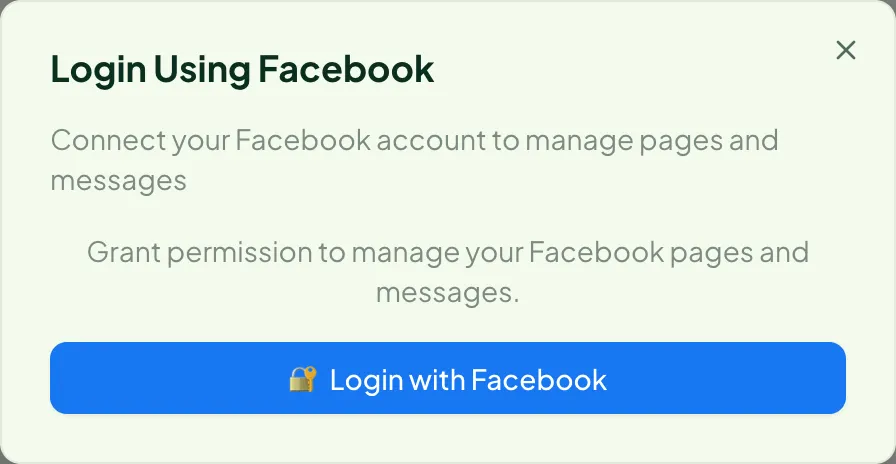
Every Page you allowed is connected in one go. To connect Pages from a second Facebook account, click Add another account in the same dialog and log in again.
If some Pages are skipped
A Facebook Page can belong to only one Fastcom organization. If a Page is already connected to another organization, the dialog shows Partially Connected and lists it under Some pages were skipped. Disconnect it from the other organization first, then log in again.
Manage your Pages
Channels › Facebook Pages shows a card for each connected Page. To see this page, you need Facebook Pages: Read.
Open Facebook PagesEach card shows:
- The Page's status: Active, or Reconnect needed when Meta has revoked Fastcom's access.
- Store: the store the Page is linked to.
- The the AI agent answers from on this Page.
- Bots: the bots connected to the Page, each Active or Inactive.
- Members: the people whose role reaches this Page.
Click Details on a card to open Page Details, where you change the Page's settings.
Link a Page to a store
- Click Details on the Page's card.
- Under Connect to Store, choose a store.
- Click Connect Store.
To unlink it, click Disconnect next to Connect Store. You need Stores: Write or Facebook Pages: Write.
Choose the AI training for a Page
- Click Details on the Page's card.
- Under Connect to Prompt Group, choose a prompt group.
- Click Connect.
You need Training: Connect to a channel. If the list is empty, create a prompt group under AI & Automation › Training first.
Choose where human handovers go
If your own system hands conversations to a person through the AI Agent Control API, Fastcom can also pass the Messenger thread to another Meta app, so someone can answer from there. Human handover target sets which app that is. By default it is Meta Business Suite / Page Inbox (default).
- Click Details on the Page's card.
- Under Human handover target, choose an app from the list. If the app you want isn't listed, type its Meta app ID in the box and click Save.
The app must already be connected to the Page. Pages that use Meta's Conversation Routing often don't list their other apps, so typing the app ID is the usual way. To go back to the default, click Reset. You need Facebook Pages: Write.
For how the handover works between two apps, see the Messenger Handover Protocol.
Reconnect a Page
A Page's connection doesn't expire, but Meta can revoke it, for example after a password change or when the app is removed from the Page. Fastcom checks every hour. When access is revoked, the Page's card shows Reconnect needed, the inbox shows Reconnect needed under the Page's name, and your organization's owners and admins get an email.
To reconnect, follow Connect a Facebook Page again with a Facebook account that manages the Page. Your Page keeps its conversations and settings.
Who can see a Page's conversations
Access to a Page's conversations comes from each member's role, not from the Page. To change who sees a Page, edit the roles in Settings › Organization.
Last reviewed 29 October 2026