

Automated follow-ups
Create rules that message customers who stopped replying, by tag, lead stage, channel or order status
A follow-up rule messages customers who went quiet after your last message. You choose who it targets, how long to wait, how many times to try, and what to send: a message the AI agent writes, your own text, a WhatsApp template, a Messenger card or a voice or video message.
AI & Automation › Follow-ups Open Follow-ups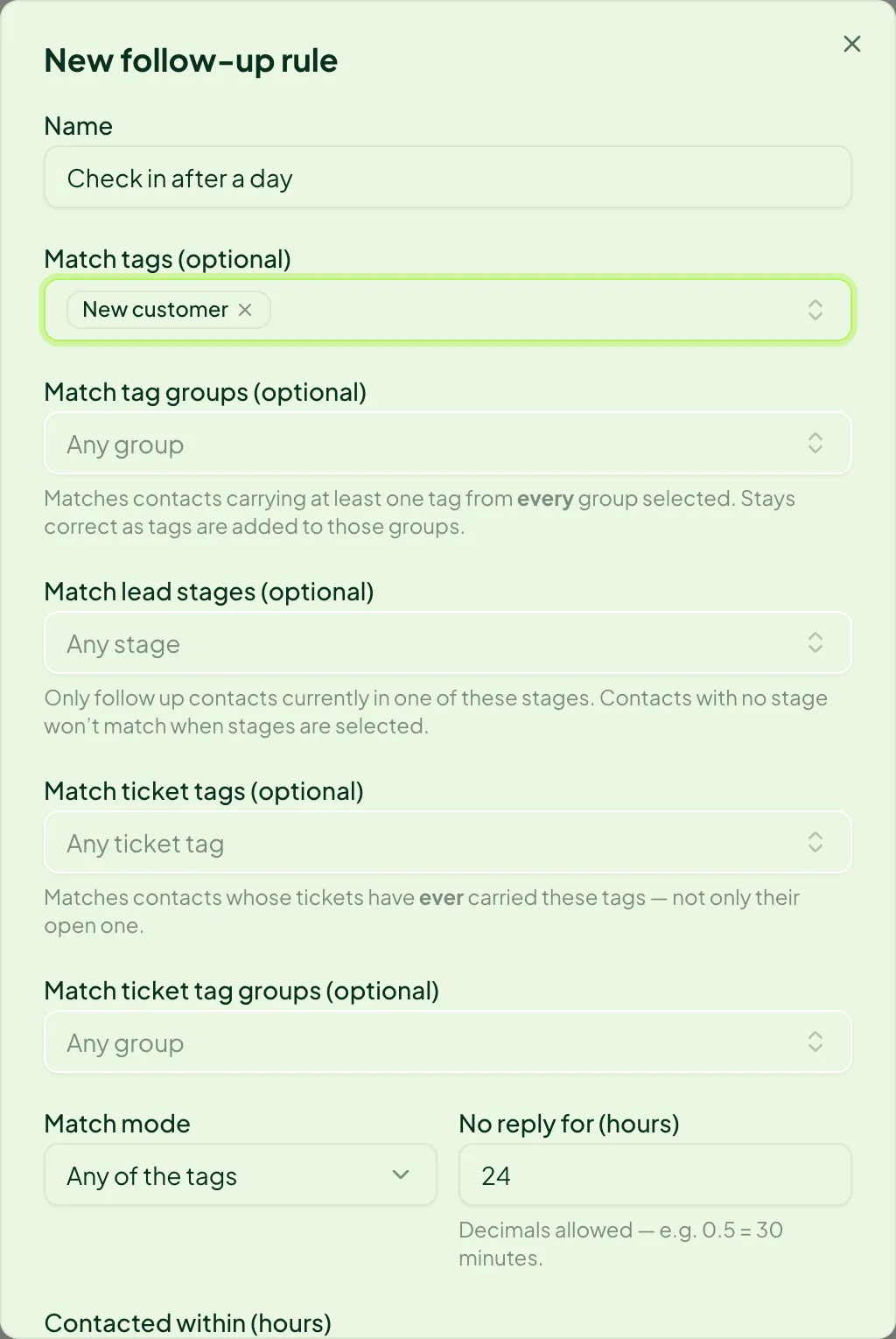
Before you start
- You need Follow-ups: Read to see rules and their results, and Follow-ups: Write to create, edit, turn on or off, duplicate, delete or test a rule.
- A rule only follows up a conversation where your side sent the last message and the customer hasn't answered. A customer who never wrote to you is never followed up.
Create a rule
- Open Follow-ups and click New rule.
- Give the rule a Name, such as "Nudge warm leads".
- Choose who to target (see Choose who a rule targets).
- Set the timing (see Set the timing).
- Under What to send, pick the message (see Choose what to send).
- Click Preview matches to see how many conversations match right now.
- Optionally, click Send a test to send the message to one contact (see Send a test).
- Click Create rule.
A new rule is on as soon as you create it. Use the switch on its card to turn it off or on.
Fastcom looks for matching conversations every 15 minutes and sends due follow-ups every 15 minutes, so a follow-up can go out up to about half an hour after a conversation qualifies.
Choose who a rule targets
Every filter is optional.
| Field | Does |
|---|---|
| Match tags (optional) | Only contacts with these tags. With Match mode, choose Any of the tags or All of the tags. |
| Match tag groups (optional) | Only contacts carrying at least one tag from every group you pick. The rule stays correct as you add tags to those groups. |
| Match lead stages (optional) | Only contacts currently in one of these stages. Contacts with no stage don't match. |
| Match ticket tags (optional) | Only contacts whose tickets have ever carried these tags, not only their open ticket. |
| Channel | Any channel, WhatsApp, Messenger, Instagram or Website chat. |
| Account | For WhatsApp, Messenger and Instagram, All accounts or one account. |
| Exclude tags | Skip contacts with any of these tags. |
| Exclude tag groups | Skip contacts with any tag from these groups. |
| Exclude ticket tags | Skip contacts whose tickets have ever carried these tags, for example anyone who had a refund dispute. |
| Exclude lead stages | Skip contacts in these stages. |
| Exclude customers who already ordered | Skip contacts with an order. Pick order statuses to skip only orders in those statuses; leave it blank to skip any order. |
The tag group fields appear only when your organization has tag groups.
With no tags and no lead stages, a rule targets every contact who goes quiet on the channel and account you picked.
Click Preview matches to check the reach, and consider an exclude tag such as do-not-contact.
Set the timing
| Field | Default | Does |
|---|---|---|
| No reply for (hours) | 24 | How long the customer must stay quiet before the first follow-up. Decimals work: 0.5 is 30 minutes. |
| Contacted within (hours) | Blank | Only contacts whose last message was at most this many hours ago. Whole hours, up to 24. |
| Max follow-ups | 1 | How many follow-ups one contact can get from this rule, up to 20. |
| Cadence (hours, comma-sep) | Blank | How long to wait before each follow-up, for example 24, 72, 168. |
| Quiet hours | Off | Hours of the day when the rule doesn't send. Start hour (0–23) defaults to 21 and End hour (0–23) to 8. |
Contacted within (hours) matters because WhatsApp, Messenger and Instagram only let you message a customer freely for 24 hours after their last message. When you leave it blank, the rule targets contacts who wrote in the last 24 hours on those channels, and has no limit on Website chat. No reply for (hours) must be less than Contacted within (hours), or the 24-hour limit; otherwise the rule matches no one and the dialog warns you.
With a cadence, the first number is the wait before the first follow-up, the second before the second, and so on. Without one, every follow-up waits No reply for (hours). A follow-up that was cancelled, skipped or failed doesn't count toward Max follow-ups.
When a follow-up falls inside quiet hours, it waits until the end hour. Quiet hours are in your local time: the rule saves the time zone of the browser you save it from, and shows it under the hours, for example Hours are in UTC+6.
When the AI agent is off
By default, a rule skips a conversation where the AI agent is paused, or where the account's bot is turned off. Turn on these switches to send anyway:
- Send even if the AI agent is paused for the conversation
- Send even if the account’s bot is turned off
A follow-up skipped this way shows as skipped in the rule's results.
Choose what to send
| Option | Sends | Notes |
|---|---|---|
| Let AI write it | A message the AI agent drafts at send time from the recent conversation and your AI instructions. | Leave AI instructions blank for a general nudge. Turn on Review each draft before sending to approve each one first. |
| Free text message | The text you type. | |
| WhatsApp template | An approved WhatsApp template, by its name. | The only option WhatsApp delivers more than 24 hours after the customer's last message. |
| Messenger button template | Message text with up to 3 link buttons. | Messenger only. Button labels can be 20 characters. |
| Messenger cards | Up to 10 cards, shown as a swipeable carousel when there is more than one. | Messenger only. Each card needs a title (up to 80 characters) and an image, subtitle or button. |
| Voice / video | A voice or video message, from a URL or from your Saved media, with an optional caption. | Skipped outside the 24-hour window on WhatsApp and Instagram. |
On Instagram, nothing is sent more than 24 hours after the customer's last message. On WhatsApp, only a WhatsApp template is sent after that.
To approve drafts, see Review AI drafts before they send.
Send a test
A test sends the rule's message to one contact you pick, right away. It is a real message on their channel.
- In the rule dialog, click Send a test.
- Search for a contact by name, username or ID, and pick them.
- Click Send now.
A test isn't counted in the rule's results and doesn't use up the contact's Max follow-ups. It is the only way to see exactly how cards, buttons and media look on the channel.
Edit, duplicate or delete a rule
Each rule card has Edit, Recipients, Duplicate and Delete. Deleting a rule stops it from scheduling new follow-ups; follow-ups it already scheduled still go out. To stop those too, cancel them from the conversation; see Follow-up activity.
Who can do this
| Area | Owner | Admin | Member |
|---|---|---|---|
| Follow-ups | All | Read, Write | - |
Last reviewed 29 October 2026