

Prompt groups
Create a prompt group for each business or brand, and choose which channels it answers on
A holds everything your AI agent answers from: its instructions, your knowledge base, your handover rules and your reply templates. You create a group, fill it in, and connect it to the channels it should answer on. If you run more than one business or brand, give each one its own group.
AI & Automation › Training Open Training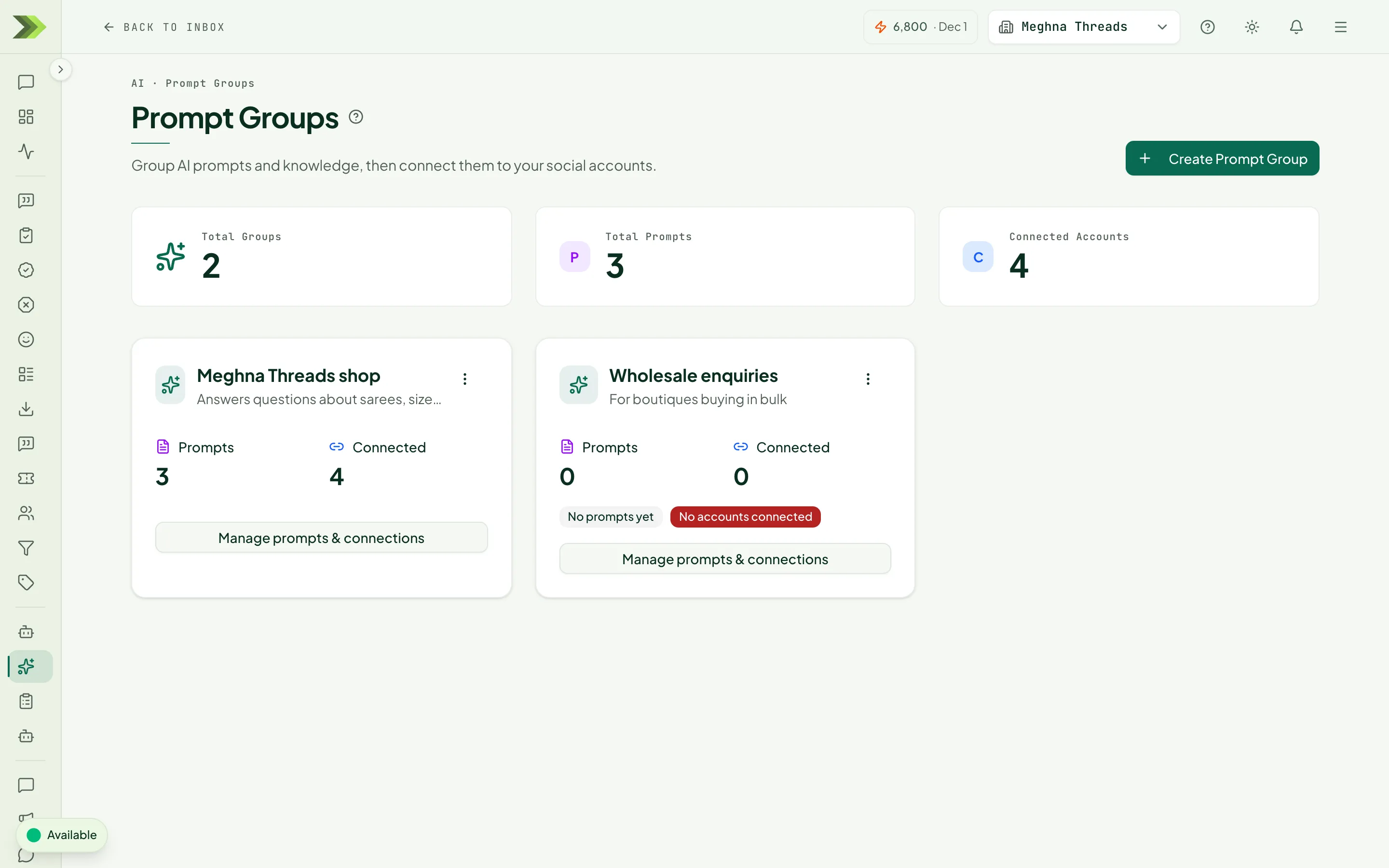
Before you start
The Training permission has four parts, and each task below needs one of them:
| Task | Permission |
|---|---|
| See prompt groups and their content | Training: Read |
| Edit a group's documents | Training: Write |
| Connect a group to a channel | Training: Connect to a channel |
| Create, rename or delete a group | Training: Manage |
An organization can limit a role's Training permissions to some prompt groups only. Training: Manage can only be given for all groups, because a new group doesn't exist yet when you create it.
Create a prompt group
- Open Training.
- Click Create Prompt Group.
- Enter a Name, such as your business or brand name. It can be up to 100 characters.
- Optionally, add a Description of what the group is for.
- Click Create.
The new group starts with four empty documents: AI Instructions, Knowledge Base, Human Handover and Templates. To fill them in, see Train the AI agent.
Each group card shows how many Prompts it has and how many channels are Connected. A No accounts connected badge means the group isn't answering anywhere yet.
Connect a prompt group to channels
- On the group's card, click Manage prompts & connections.
- Click Connections.
- In Connected Channels, find the channel under Messenger, WhatsApp, Instagram, Website Widgets or Mobile Apps.
- Click Connect.
Each channel follows one prompt group at a time. If a channel already follows another group, its row shows that group's name and the button reads Move here. Clicking Move here moves the channel to this group, and the AI agent answers there from this group's content from then on.
To stop a channel following this group, click Disconnect.
Connecting a channel changes what the AI agent says to real customers on it. Check the group's content before you connect or move a busy channel.
If the dialog says No connectable channels yet, connect a Facebook Page, Instagram account, WhatsApp number, website widget or mobile app first; see Channels.
Rename or delete a prompt group
To rename a group, open the ⋮ menu on its card and click Edit, or click Edit Group inside the group. Change the Name or Description and click Update.
To delete a group:
- Open the ⋮ menu on its card and click Delete.
- Click Delete to confirm.
Deleting a group deletes all its documents and can't be undone. Its connected channels are detached, not deleted, so connect them to another group afterwards.
Who can do this
| Area | Owner | Admin | Member |
|---|---|---|---|
| Training | All | Read, Write, Connect to a channel, Manage | - |
Last reviewed 29 October 2026