

Train the AI agent
Write the instructions, knowledge, handover rules and templates your AI agent answers from, and restore an earlier version
You train the AI agent by editing the four documents in a . The AI agent answers every channel connected to that group from what you save here.
AI & Automation › Training Open TrainingYou need Training: Write on the group to edit it. With Training: Read only, you can read the documents and their history.
The four documents
Open a group by clicking Manage prompts & connections on its card. Each tab is one document, written in Markdown.
| Tab | What to put in it |
|---|---|
| AI Instructions | How the AI agent should respond in every conversation: its tone, what it does and doesn't do. |
| Knowledge Base | FAQ answers, product information, policies and support documentation. |
| Human Handover | When the AI agent should stop replying and hand the conversation to a person, and what it says as it hands off. For example: refund disputes, angry customers, anything outside its remit. |
| Templates | Reply shapes the AI agent should reuse, such as greetings, order-status updates and closing lines. Put each one under its own Markdown heading so the AI agent can pick the right one. |
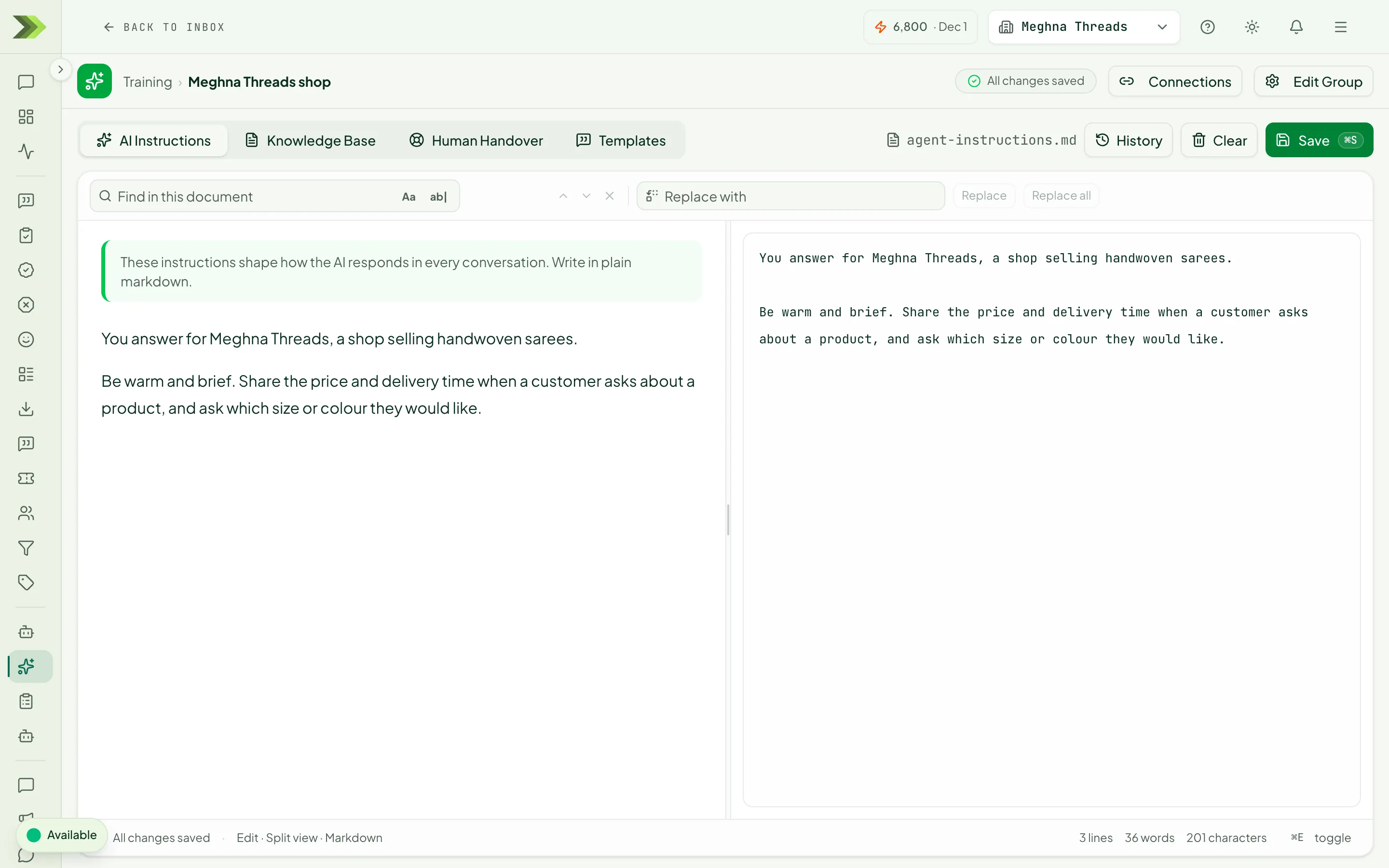
Edit a document
- Open the group and click the tab you want to change.
- Click Edit. The editor opens in a split view, with your Markdown on one side and a preview on the other.
- Make your changes.
- Click Save.
The status at the top shows Unsaved changes until you save, and All changes saved after. Clear empties the document in the editor; nothing changes for customers until you save.
To check what you are about to save, click Changes to compare your edits with the saved version. From there you can Save, Discard your edits, or Keep editing.
If you click outside the editor with unsaved changes, Fastcom asks whether to Save, Discard or Review changes. Your unsaved edits on each tab are kept while you switch between tabs.
If someone else publishes the same document while you are editing it, your save stops and shows Changed while you were editing. It compares the newly published version with your edits. Click Save mine anyway to replace it with yours, Discard mine, load v… to drop your edits and load the new version, or Keep editing.
Keyboard shortcuts
| Shortcut | Does |
|---|---|
| ⌘ S or Ctrl S | Save the document |
| ⌘ E or Ctrl E | Switch between edit and preview |
| ⌘ F or Ctrl F | Find text in the document |
Restore an earlier version
Every save creates a new version, so you can see who changed a document and go back.
- Open the tab and click History. Version history lists each version with its number, date and author, and marks the live one Current.
- Click View & compare on a version to see it, or switch to Diff vs current to see what changed since.
- Click Restore this version, then Restore.
Restoring copies the old content into a new version. The content you replaced stays in the history, so you can undo a restore the same way.
To name a version, click Edit label & note and add a Label or Note, for example "Eid sale prices".
Review drafts sent from your own systems
Your own systems, such as a CMS or FAQ tool, can send content to a document through the Prompts API. They can publish it straight away, or send it as a draft for you to check first.
A draft doesn't change what the AI agent says. A tab with a draft shows a blue dot, and the group's card on Training shows how many drafts are waiting. Above the document, a bar shows Unpublished draft, which system sent it, when, and which version it was written against.
- Click Review to compare the draft with the published content.
- Click Publish to make the draft live. It becomes a new version in History.
- Click Discard to delete the draft. The published content doesn't change.
If the document was published again after the draft was written, the bar turns amber. Publishing that draft replaces the newer content, so Fastcom asks you to confirm with Publish anyway.
Versions published by an API key show API, the key's name and the sender's label as the author in History.
Tips for better answers
- Put facts in Knowledge Base and behavior in AI Instructions. A price or a policy then lives in one place.
- Write handover rules as situations the AI agent can recognize, such as "the customer asks for a refund". Conversations it hands over appear under Human handover.
- After a big change, send a test message on a connected channel and read the reply.
Who can do this
| Area | Owner | Admin | Member |
|---|---|---|---|
| Training | All | Read, Write, Connect to a channel, Manage | - |
Last reviewed 29 October 2026