

Assign conversations
Give each conversation that needs a person an owner on your team, automatically or by hand
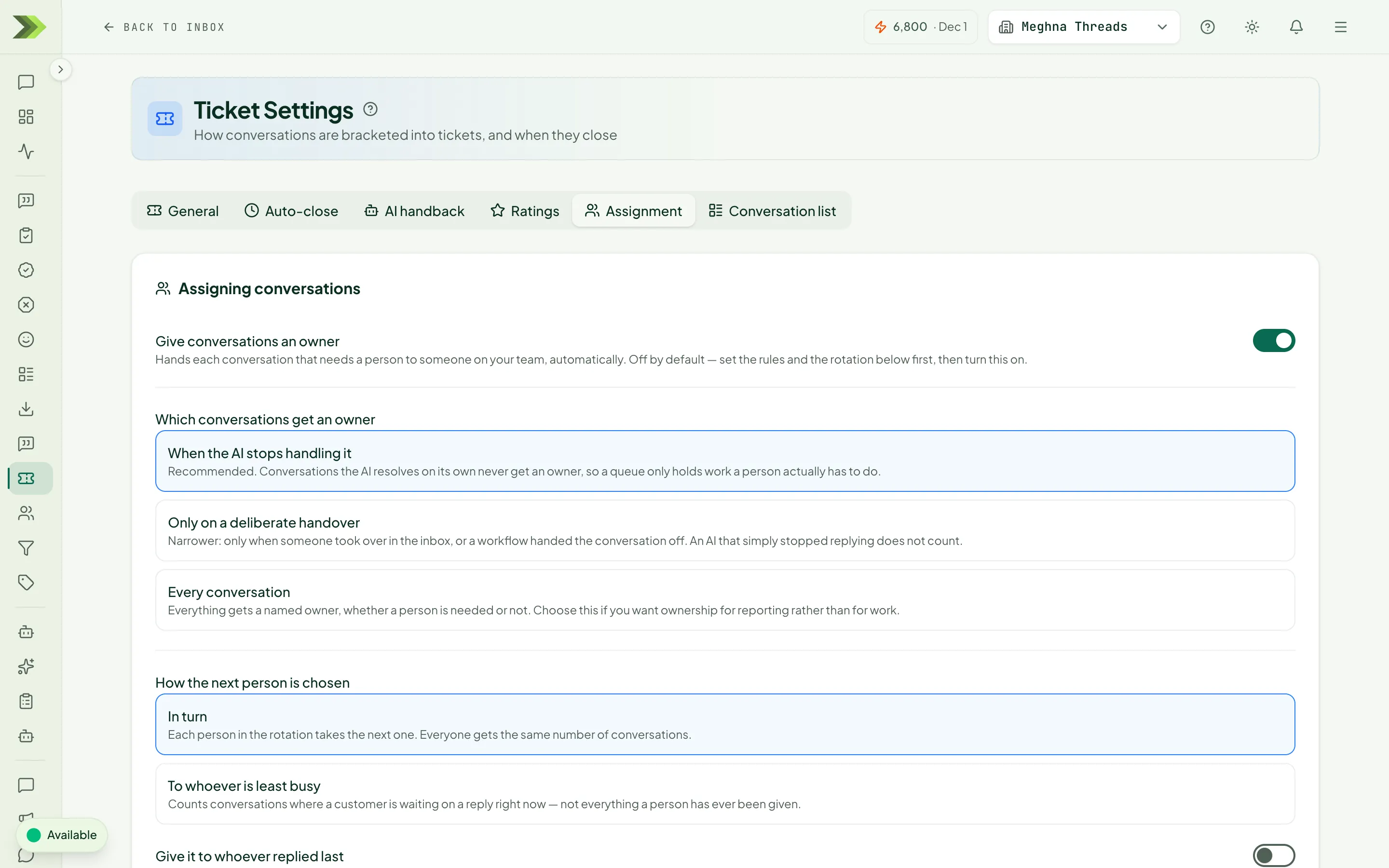
Give every conversation that needs a person a named owner, so nothing waits without someone responsible for it. Fastcom assigns the open , not the customer: each new request can go to someone different.
Assignment is off until someone turns it on. While it is off, the inbox has no assignee controls.
Turn on assignment
You need Ticket Settings: Write.
Conversations › Ticket Settings › Assignment Open assignment settings- Under Which conversations get an owner, pick one:
- When the AI stops handling it (recommended): only conversations the AI agent hands to a person.
- Only on a deliberate handover: only when someone took over in the inbox, or a workflow handed the conversation off.
- Every conversation: everything gets an owner, whether a person is needed or not.
- Under How the next person is chosen, pick In turn or To whoever is least busy. Least busy counts the conversations where a customer is waiting on a reply right now.
- Build the rotation under Who is in the rotation (see below).
- Set the optional rules below if you need them.
- Turn on Give conversations an owner.
- Click Save assignment settings.
Optional rules
| Setting | What it does |
|---|---|
| Give it to whoever replied last | The ticket goes to the teammate who last replied from the Fastcom inbox, and moves to the next teammate who replies, even if they are off shift, at their limit or not in the rotation. Replies sent from other apps don't count. Off by default. |
| Only assign to people who are on shift | Conversations wait in the unassigned list until someone is Available. Off by default. |
| Most active conversations per person | Leave blank for no limit, or set 1 to 500. When everyone is at their limit, new conversations wait unassigned. Not shown with one ticket per lead. |
| Most handed over at once | The most someone picks up from the backlog when they come on shift. Default 5, from 1 to 100. |
Build the rotation
The rotation is the list of people who receive conversations, in order. Changes to it save straight away.
- If the list is empty, click Add everyone in the organization, then remove anyone who shouldn't be in it.
- To add one person, pick them in Add someone to the rotation and click Add.
- Use the arrows to change the order, and Remove to take someone out.
- Next up marks who gets the next conversation.
Everyone in your organization is added the first time assignment is turned on. A teammate is skipped for a conversation on a channel their role can't open.
Set your shift status
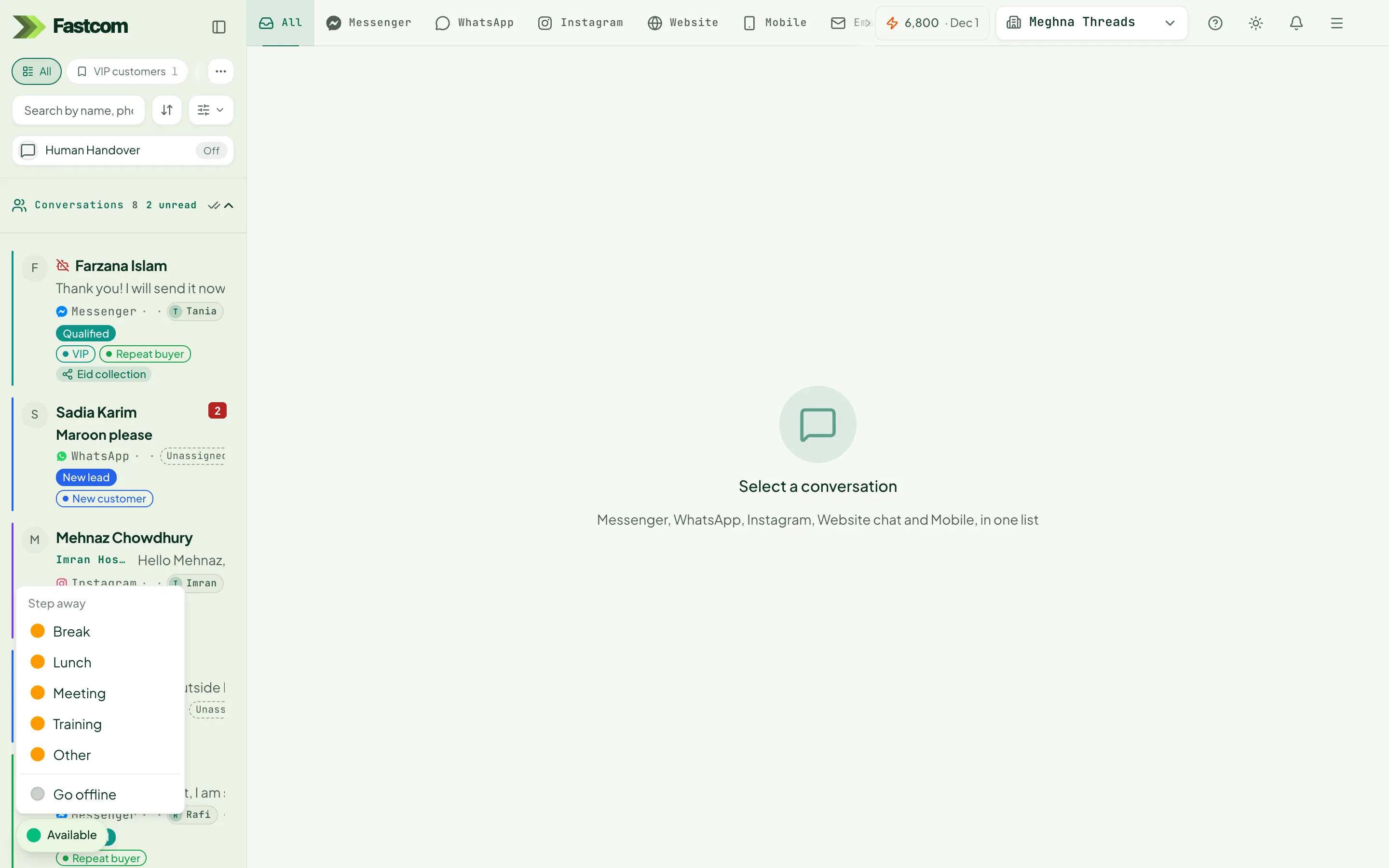
A status button floats in the bottom-left corner of every screen for anyone who can open the inbox. It shows Available, Away or Offline, and works whether or not assignment is on: your team can see who is available.
- To step away, click it while Available and pick Break, Lunch, Meeting, Training or Other, or Go offline.
- To come back, click it while away or offline.
- Drag it to move it somewhere else on the screen.
When assignment is on, new conversations go to someone else while you are away. Conversations already assigned to you stay yours. Fastcom sets you offline when your app disconnects or after a long stretch with no activity, and a supervisor can change your status.
Assign a conversation by hand
You need Inbox: Assign on that channel.
- Open the conversation.
- Click the assignee button at the top right. It shows the current owner, or Unassigned.
- Pick a teammate, or Unassigned to release it.
The button is greyed out when the conversation has no open ticket, because there is nothing to assign until the customer writes again.
Find your assigned conversations
When assignment is on, the inbox filters include:
- Mine: open tickets assigned to you.
- Unassigned: open tickets nobody owns.
- Anyone: no assignee filter. With Inbox: Filter by teammate, it opens a menu where you pick named teammates.
Each row in the list shows the owner: You, a teammate's first name, or Unassigned.
An admin can limit a role's inbox list to Own + unassigned only or Own only in the role's settings. A teammate with such a role can't widen their list past it.
See who handled a request
Open the customer panel and expand Assignment history. It lists each assignment and why it happened: next in turn, least busy, the last to reply, coming on shift, or moved by hand and by whom.
Who can do what
| Area | Owner | Admin | Member |
|---|---|---|---|
| Inbox | All | Read, Write, Assign, Delete conversations, Filter by teammate | Read, Write, Assign |
| Ticket Settings | All | Read, Write | - |
Last reviewed 29 October 2026