

Inbox views
Save a set of inbox filters under a name and open it in one click, for yourself or for your whole team
Save the filters you use often, such as "Unread refunds on WhatsApp", as an , and open them again with one click. A view is either yours alone or shared with your whole team.
Open a view
Your views sit in a row above the search box in the inbox. Click a view to apply its filters. Click All to leave the view and see every conversation again.
Team views come first, then your own, with a line between them. If there are no views yet, the row shows Create a saved view.
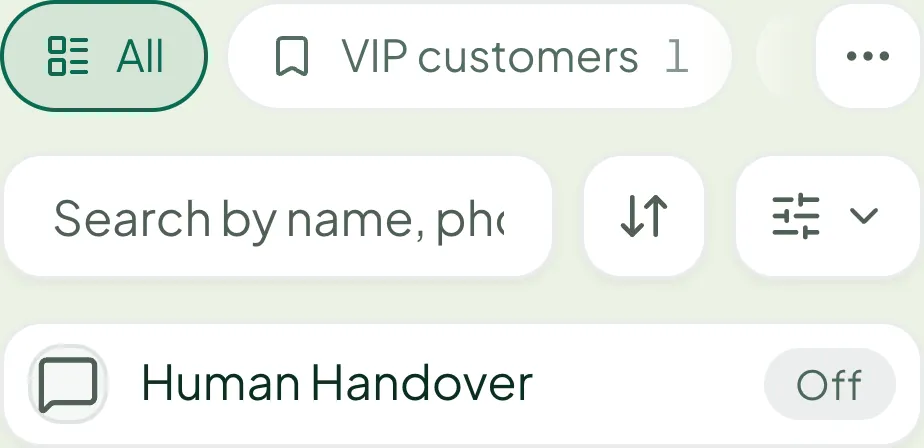
Click the three-dot All views button at the end of the row to search every view, including ones you have hidden. From there you can also:
- Hide a view from your row, or show it again. Hiding doesn't delete it.
- Copy a team view into your own views.
Using views in the inbox needs Inbox Views: Use views in the inbox or Inbox Views: Read.
Save the filters you have set
- Set the filters, sort and search you want in the inbox.
- Click All views and choose Save these filters as a view….
- Enter a Name of up to 40 characters, and pick an Icon and a Colour.
- Check the Filters captured. If you searched, tick Also save the search term to keep it in the view.
- Under Visible to, pick Just me or The whole team.
- Click Save.
Sharing with the whole team needs Inbox Views: Manage.
Under Visible to, Fastcom says where the view works:
- Available in every inbox: the view uses only filters every inbox has.
- Only in the unified inbox: the view uses a filter that only the All inbox has, such as channels.
- Only in followed by an account's name: the view uses a filter that exists only in that Page or number's inbox, such as an ad.
Change a view you are using
When you change the filters while a view is open, a bar shows the view's name and that it is modified.
- Reset puts the view's filters back.
- Save updates the view with your changes.
- Save as my view appears instead of Save when you can't edit the view, and saves your changes as a copy of your own.
Nothing saves on its own, so your changes never change a team view for everyone by accident.
Manage views
You need Inbox Views: Read to open the page.
Conversations › Inbox Views Open Inbox ViewsThe page lists Team views and My views. You can always edit your own views; editing team views needs Inbox Views: Manage.
Create a view on the page
- Click New view.
- Enter a Name, and pick an Icon and a Colour.
- Under This view shows, set the filters: Sort, Read state, Customer tags, Ticket tags (current ticket), Lead stages, Channels, Ticket state and Assignee, and the Only conversations awaiting a reply and Only conversations handed to a human boxes.
- Under Visible to, pick Just me or The whole team.
- Click Create view.
Some filters show only when your organization uses them: Ticket state needs one ticket per issue, and Assignee needs assignment to be on. Filters that exist only inside one account's inbox, such as an ad, can be saved from that inbox but not set here.
Change, share and delete views
Each view has buttons for:
- Edit filters, Rename and Delete.
- Duplicate to my views, to make your own copy.
- Duplicate for every inbox, to copy a view made in one account's inbox without that account's filters.
- Share with the team on your own view, or Make private on a team view. Both need Inbox Views: Manage. Sharing puts the view on every member's row at once.
Deleting a team view removes it from everyone's inbox. Anyone using it at the time keeps their filters.
Set a default view
On a team view, click the star to make it your organization's default. Fastcom applies the default view the first time a teammate opens an inbox where they have no saved filters. After that, the inbox keeps their own filters. Setting a default needs Inbox Views: Manage.
Who can do what
| Area | Owner | Admin | Member |
|---|---|---|---|
| Inbox Views | All | Read, Manage, Use views in the inbox | Read, Use views in the inbox |
Last reviewed 29 October 2026