

Internal notes
Leave notes in a conversation that only your team can see, and mention a teammate to hand them something
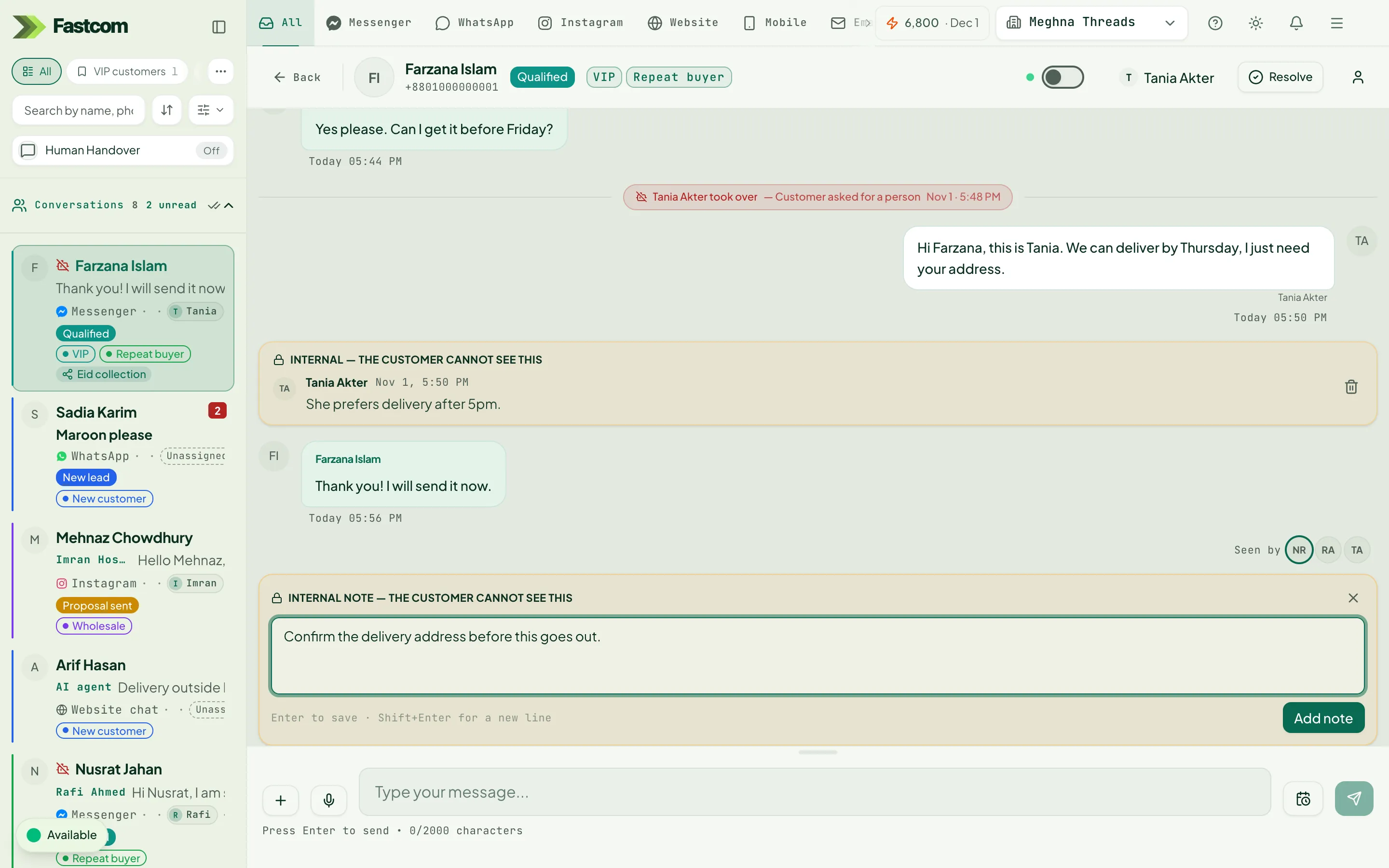
Write an internal note in a conversation to tell your team something the customer must not see. Notes appear in the thread with the label that the customer cannot see them, and they are never sent to the customer.
You need Inbox: Write on the conversation's channel to write a note.
Write a note about the conversation
- Open the conversation.
- Click the + button next to the message box and choose Internal note.
- Type your note.
- Press Enter or click Add note.
Press Shift+Enter for a new line, and Escape to cancel. A note can be up to 5,000 characters.
Write a note about one message
Right-click a message and choose Add internal note. You can also hover over the message, click the Message actions button and choose Add internal note.
The note sits under that message, with a preview of it. If you write it well after the message was sent, the note says so, for example added 3 days later.
Mention a teammate
Type @ in a note and pick a teammate from the list.
Use the arrow keys to move through the list and Enter or Tab to pick.
Each teammate you mention gets a notification that links to the conversation. You don't get one for mentioning yourself.
Edit or delete a note
Hover over a note to see its buttons.
- Edit note: only the person who wrote the note can edit it. An edited note shows edited.
- Delete note: the author can delete it, and so can anyone with the Owner or Admin role. The note is replaced by Note deleted by and the author's name, so your team can see that it was removed.
Notes about the customer
The customer panel also has a Notes section: one shared note about the customer, separate from the notes in the thread. Type in Add an internal note about this customer… and click Save note. Saving replaces the previous text.
You need CRM: Apply (inbox panel) to save it.
Last reviewed 29 October 2026