

Ticket Settings
Decide what a ticket means in your organization, when tickets close, when the AI agent takes a conversation back, and when customers are asked for a rating
Set how conversations are split into , and when they close, for everyone in your organization. These settings change what your reports measure, so only people who manage the inbox should change them.
You need Ticket Settings: Read to open the page and Ticket Settings: Write to save changes. The default Member role has neither, so members don't see the page.
Conversations › Ticket Settings Open Ticket SettingsThe page has seven tabs: General, Auto-close, AI handback, Ratings, Assignment, Lead stage rules and Conversation list. Edits on every tab except Assignment and Lead stage rules share one save bar: click Save changes to save them, or Discard to undo. A dot on a tab marks unsaved changes there.
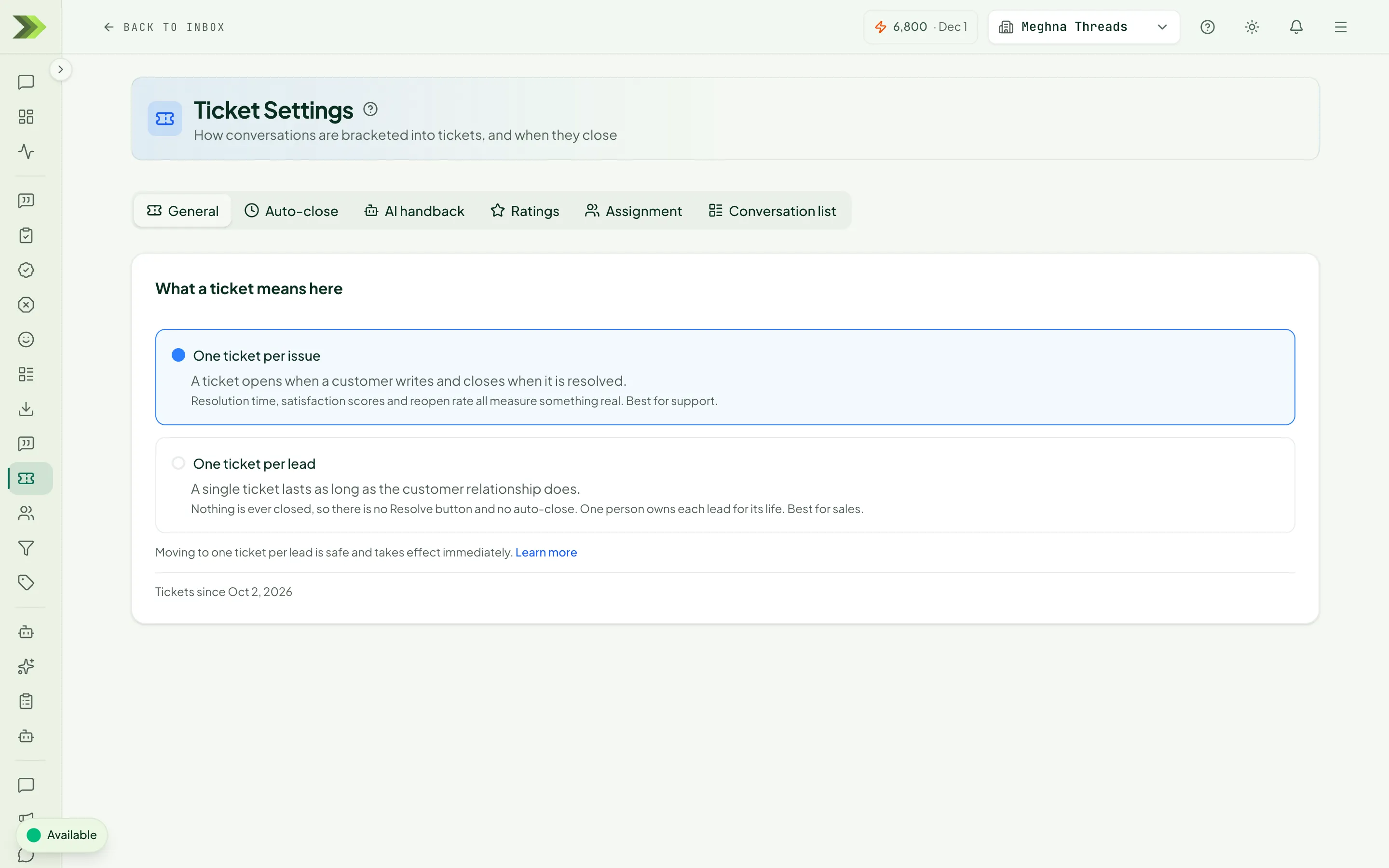
Choose what a ticket means
On General, under What a ticket means here, pick one:
- One ticket per issue (the default): a ticket opens when a customer writes and closes when it is resolved. Resolution time, satisfaction scores and reopen rate all measure something real. Best for support.
- One ticket per lead: a single ticket lasts as long as the customer relationship does. Nothing is ever closed, so there is no Resolve button and no auto-close. Best for sales.
Moving from one ticket per issue to one ticket per lead is safe and takes effect at once. Moving back is not a setting: every open ticket would close at once, so contact support to plan it.
With one ticket per lead, the Auto-close, AI handback and Ratings tabs have nothing to set, except the "." toggle on AI handback.
Auto-close
Close after silence
Hours with no messages closes a quiet ticket on its own. The default is 48 hours, from 1 to 720. A ticket closed this way is marked timed out, not resolved, so your reports can tell the two apart.
Keep tickets open when
Any one of these rules stops the timeout. When the rule no longer applies, the timeout counts again from the last message.
| Rule | What it does |
|---|---|
| A person has taken the conversation over | Tickets with the AI agent switched off never time out. Off by default. |
| The customer has a tag | Holds tickets for customers with any of the tags you pick, up to 100 tags. |
| The ticket has a tag | Holds tickets with any of the tags you pick. This hold expires after …but no longer than (hours): 336 hours (14 days) by default, up to 2,160. Turn on Never expire this hold only if people, not automatic tagging, apply these tags. |
| The lead is in a stage | Holds tickets for customers in any of the lead stages you pick. |
Reopening
Reopen window (hours): a customer who writes back within this time after a close reopens the same ticket instead of starting a new one. The default is 24 hours. Set it to 0 to always start a new ticket.
AI handback
When a ticket closes
Give the conversation back to the AI agent is on by default. When a ticket is resolved or times out, the AI agent is switched back on for that customer and the handover reason is cleared. Turn it off if a takeover should mean the conversation belongs to a person from then on.
Under …except for customers tagged, pick tags for customers who should stay with a person, such as key accounts. Their AI agent stays off when their ticket closes. Up to 100 tags.
If you also turn on A person has taken the conversation over on Auto-close, those tickets no longer time out, so only resolving them hands them back.
Quick toggle from the page
Turn on Send "." to turn the AI agent on or off to let teammates switch the AI agent by sending a message that is only ..
It works from Facebook Business Suite, the Page inbox, the WhatsApp Business App and the Fastcom inbox.
The customer receives the . as a normal message, but it is kept out of the AI agent's memory.
Every switch shows in the conversation's AI agent on/off history.
Off by default.
See Take over from the AI agent.
Ratings
Turn on Ask customers to rate a resolved ticket to send one message in the customer's own channel a few minutes after a ticket closes, asking for a score from 1 to 5. It is off by default, because it messages your customers without them writing first. Everything on this tab is saved whether or not it is on.
| Setting | Default | What it does |
|---|---|---|
| Ask on these channels | All channels | Pick Pages and accounts to ask only there. Leave empty to ask everywhere. |
| What we ask | "Glad we could help! How would you rate this experience from 1 to 5? ⭐" | The question, sent as a normal message. Write it in your customers' language. |
| Wait before asking (min) | 5 | So the question doesn't land on top of your last reply. 1 to 1,440. |
| Ask at most every (days) | 30 | Per customer, however many tickets they open. 0 to 365. |
| Skip tickets under (messages) | 4 | Short tickets aren't asked. 0 to 100. |
Fastcom asks only about tickets that closed in the last 24 hours, and only when the customer has nothing open. The score appears on the ticket in the customer panel. See Tickets.
Rating card
Expand Rating card to send a tap-to-rate card instead of the text question where the channel supports it:
- Send Meta's rating card on Messenger. Needs a Privacy policy link (Messenger). If the card can't be sent, Fastcom sends the question instead.
- Send the rating card in the web chat.
- Send the rating card in your mobile app, once your app shows the card. See the Mobile Chat API.
Set the card's Title, Subtitle, Button, optional Question, Score style, and whether customers can add a comment.
Try it
Expand Try it on a real conversation, pick a contact and send yourself the question as it stands. Nothing about their tickets or ratings changes unless you choose to record their reply as a real rating.
Assignment
The Assignment tab sets whether and how conversations are handed to your team. It has its own save button, Save assignment settings. See Assign conversations.
Lead stage rules
The Lead stage rules tab moves leads between lead stages, or resolves their ticket, when something happens. Each rule reads "when this happens, and the lead is in these stages, do this". It has its own save button, Save rules.
A rule can run when:
| When | What it means |
|---|---|
| The customer sends a message | Any new message from the customer. |
| The lead is moved to a stage | A team member, AI enrichment or a voice agent moves the lead into the stage you pick. |
| A new ticket opens | The customer writes and a new ticket starts. |
| A resolved ticket reopens | The customer writes back within the reopen window. |
| A ticket is resolved | By anyone, only by a team member, or only by the auto-close timeout. |
It can then Move the lead to a stage or Resolve the ticket. Use Only if the lead is in to limit a rule to leads in certain stages. For The lead is moved to a stage, this is the stage the lead moved from.
For example, to send a lead back to your team when the customer answers, add a rule: when The customer sends a message, only if the lead is in "Awaiting reply", move the lead to "Initial landing".
Rules run from top to bottom, and only the first rule that applies acts. Use the arrows to change the order. A rule that would change nothing is skipped, so the next rule gets its turn. A change made by a rule never sets off another rule. When one message both reopens a ticket and matches a The customer sends a message rule, only the reopen rule acts.
Changes made by a rule show as Lead stage rule in the lead's stage history. A ticket resolved by a rule counts as resolved by the team member who moved the stage, or as automatic when nobody did.
If your organization uses one ticket per lead, tickets never close, so rules that resolve or reopen tickets aren't available.
Conversation list
Choose what each row in the conversation list shows, for everyone in your organization. The customer name, message preview and time always show. Switch off any of these:
| Item | What it is |
|---|---|
| Unread count | The number of unread messages. Unread rows still show their last message in bold. |
| Who sent the last message | The name before the preview, such as a teammate, "AI agent" or "Follow-up". |
| Assignee | Who the open ticket is assigned to. Only shown when assignment is on. |
| Channel and account | Which channel and Page or number the conversation is on. Only in the All inbox. |
| Lead stage | The lead stage badge. |
| Tags | The conversation's tags. |
| Ad | The ad the customer came from. |
Who can do what
| Area | Owner | Admin | Member |
|---|---|---|---|
| Ticket Settings | All | Read, Write | - |
Last reviewed 29 October 2026