

CRM and lead stages
Keep each customer's details, move leads through your sales stages, and see all your customers in a table or board
Record who each customer is and where they are in your sales process, from the inbox while you chat or from the CRM page.
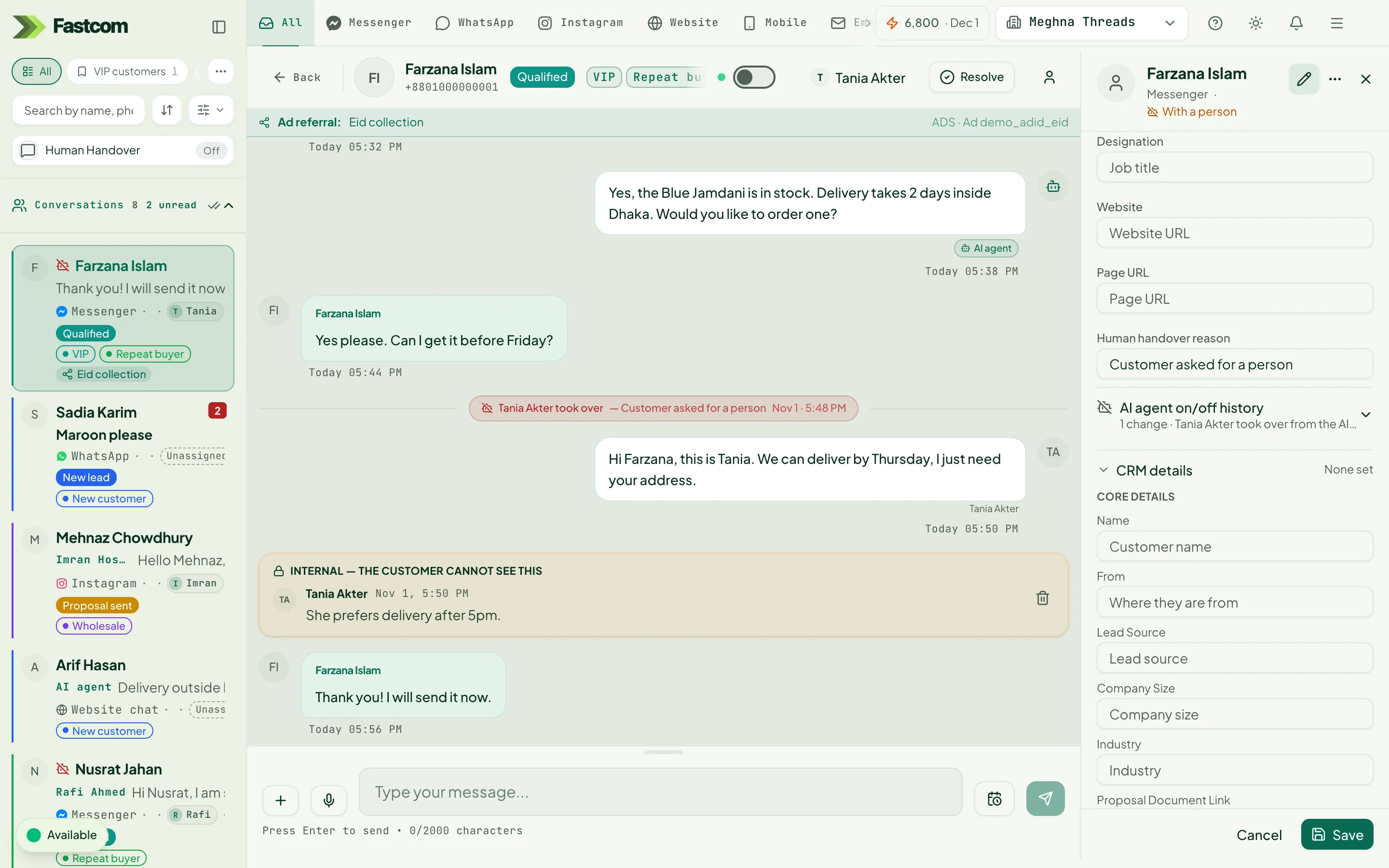
Edit a customer's details from the inbox
You need CRM: Apply (inbox panel).
- Open the conversation and open the customer panel with the person icon at the top right.
- In Details, click Edit.
- Fill in the fields you know, such as Phone, Email, Address, Company or Designation.
- To fill in more fields, expand CRM details. Your organization's own fields are under Custom fields there.
- Click Save.
Set a lead stage
A lead stage says where a customer is in your sales process, such as "New", "Negotiating" or "Won". A conversation is in one stage at a time.
You need Lead Stages: Apply.
- Open the customer panel.
- Under Lead stage, click the stage button. It shows No stage when none is set.
- Pick a stage, or Clear stage to remove it.
The stage shows as a colored badge on the conversation and in the list. To filter the list by stage, see Find conversations.
You can also type a name in New stage to create a stage on the spot. Creating a stage needs Lead Stages: Manage.
See who changed the stage
Once a conversation's stage has changed, Stage history shows under Lead stage in the customer panel and in the customer's details on the CRM page. It shows the latest change while closed. Open it to see every change, newest first, with the stage before and after, who made the change and when.
A change can come from a team member, the default stage for new conversations, AI enrichment, an undo of AI enrichment, a voice agent, a lead stage rule, or a CRM integration. Changes made before this history existed aren't listed.
Manage lead stages
You need Lead Stages: Read to open the page and Lead Stages: Manage to change it.
Conversations › Lead Stages Open Lead Stages- To add a stage, enter a Stage name, an optional description and a color at the bottom of the list, then click Create.
- To change a stage, click Edit.
- To delete a stage, click Delete. The stage is cleared from every conversation in it, and this can't be undone.
Set a default stage
Click Set default on a stage to give every new conversation from Messenger, Instagram and WhatsApp that stage. Click Default again to stop. Without a default, new conversations start with no stage.
Add your own CRM fields
You need CRM Fields: Read to open the page and CRM Fields: Manage to change it.
Conversations › CRM Fields Open CRM FieldsAdd a field for anything the built-in fields don't cover, such as a car model or a preferred delivery date. Every customer gets it, in the inbox customer panel and the CRM page's customer dialog.
- Click Add field.
- Enter a Name. A Key is suggested from it; change it if you like.
- Pick a Type: short text, long text, number, date, yes/no, or choice. For a choice field, add its options.
- Optionally add a Description that says what the field means.
- Click Add field.
- The key and type can't be changed later, so stored values and integrations keep working. The CRM API writes a field by its key.
- You can rename a choice field's options and add new ones, but not remove them.
- To stop using a field, click Archive. Its values are kept but hidden, and Restore brings them back.
- Use the arrows to change the order fields appear in.
- An organization can have up to 50 active fields.
Work with customers on the CRM page
You need CRM: Read to open the page and CRM: Write to edit customers there.
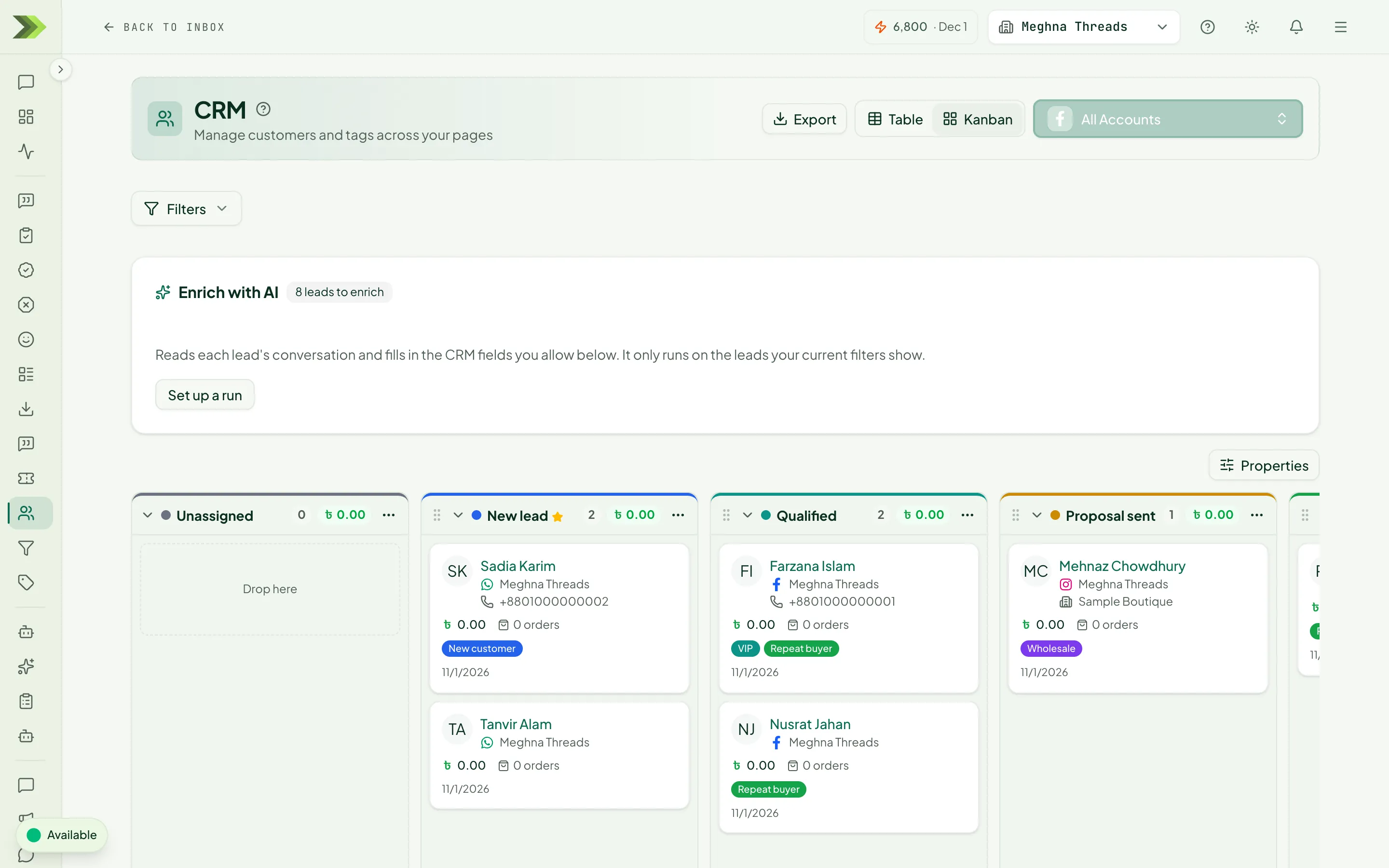
Conversations › CRM Open CRMUse the account switcher at the top right to pick a Page or account, and choose Table or Kanban. The Kanban board needs an account to be picked.
Live updates
Keep the CRM open while your team works. Customer details, new customers, lead stages, tags and totals refresh automatically in Table and Kanban. Changes from the inbox or another team member's CRM appear in your current view when they match your account selection and filters.
Your filters, page selection and expanded columns stay in place. A changed customer can move to another column or leave the results if they no longer match your filters. You only see customers you have permission to read.
The page catches up after a connection interruption or when you return to the tab. Background updates keep existing results visible.
Saved edits and stages
After you save an inline stage change or remove a tag, the saved value stays visible while the CRM refreshes. If another update arrives during a refresh, the page refreshes again to pick up that change.
Creating, editing, deleting or reordering a stage updates the board's stage list without waiting for a new conversation. This also works when your organization has no customers yet.
If you are editing customer details, incoming changes update untouched fields and keep your unsaved edits. If someone changes a field you are saving, the save stops and explains the conflict. In the customer details dialog, Reload latest values discards your draft and loads the current values so you can review and edit again. For an inline table edit, cancel the edit to load the current value.
Filter customers
Narrow the customers with Search, Tags, Ticket tags (ever), Lead Stage, Created From and Created To, Field completeness and Bot Status. Bot Status shows customers with the AI agent Enabled or Disabled, and Go to Human Handover opens the handover page. Click Reset to clear the filters.
Table
The table lists each customer with their account, orders, contact information, notes, AI agent status, satisfaction, lead stage and tags. Choose 50, 100 or 200 rows with Show. Click a customer to open their details.
Kanban
The board has a column for each lead stage. Drag a customer's card to another column to change their stage.
- Properties chooses what each card shows.
- Group by switches the columns to a tag group that allows only one tag per conversation.
- Hidden columns are listed under Hidden, where you can show them again.
Export customers
- Set the filters for the customers you want.
- Click Export.
- Tick the columns you want, or click Select all.
- Click Download .xlsx.
The file holds every customer that matches your filters.
Who can do what
| Area | Owner | Admin | Member |
|---|---|---|---|
| CRM | All | Read, Write, Apply (inbox panel) | Read, Write, Apply (inbox panel) |
| Lead Stages | All | Read, Manage, Apply | Read, Apply |
| CRM Fields | All | Read, Manage | - |
Last reviewed 18 November 2026