

Saved replies and saved media
Keep answers, images, audio and video your team sends often, and send them from the inbox in a few clicks
Save the answers your team types again and again, and send them from any conversation without retyping them. Saved replies are text with optional images; saved media are audio and video clips. Both are shared across your organization.
Use a saved reply
- In a conversation, click the + button next to the message box and choose Saved Replies.
- Search for the reply, or sort by Frequently used, Recently used or Newest.
- Click the reply.
Its text goes into the message box and its images are attached, so you can change anything before you press Enter.
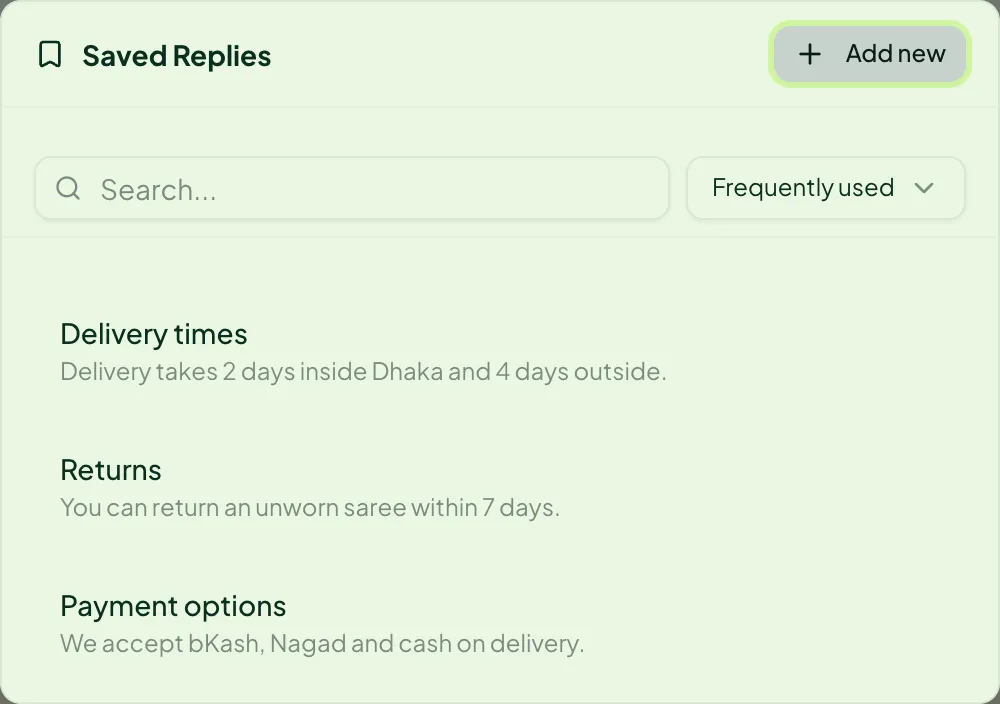
You can also create, edit and delete replies from this picker. If there are none yet, click Create your first saved reply.
Manage saved replies
You need Saved Replies: Read to open the page, and Saved Replies: Write to add, edit or delete replies.
Catalog & Content › Saved Replies Open Saved Replies- Click Create Reply.
- Enter a Title, such as "Price inquiry", and the Content your team will send.
- Optionally click Upload Images to attach images. Each image must be 5 MB or smaller.
- Click Create.
The table shows how many times each reply was used and when it was last used. Use Edit or Delete on a row to change or remove a reply.
Send saved media
Saved media works in Messenger, Instagram and WhatsApp conversations. The channel must be connected to a store, because each store has its own media library.
- In a conversation, click the + button and choose Saved Media.
- Search for the clip if you need to, then click Send next to it.
The clip is sent on its own, as an audio or video message.
Manage saved media
You need Saved Media: Read to open the page, and Saved Media: Write to upload, rename or delete clips.
Catalog & Content › Saved Media Open Saved Media- Pick a store.
- Click Upload Media.
- Enter a Title, then click Choose audio or video and pick a file. The file must be audio or video, 25 MB or smaller.
- Click Add to library.
The Channels column shows which of the store's channels already have the clip. Click Prepare all channels to upload every clip to every Messenger, Instagram and WhatsApp channel connected to the store, so the first send is instant. To prepare one clip, use Prepare for channels in its row menu.
Who can do what
| Area | Owner | Admin | Member |
|---|---|---|---|
| Saved Replies | All | Read, Write | Read, Write |
| Saved Media | All | Read, Write | Read |
Last reviewed 29 October 2026