

Find conversations
Search, sort and filter the conversation list, and track which conversations you have read
Find the conversation you need with search, sort and filters, and see at a glance which ones still need you.
Open the All inboxChoose an inbox
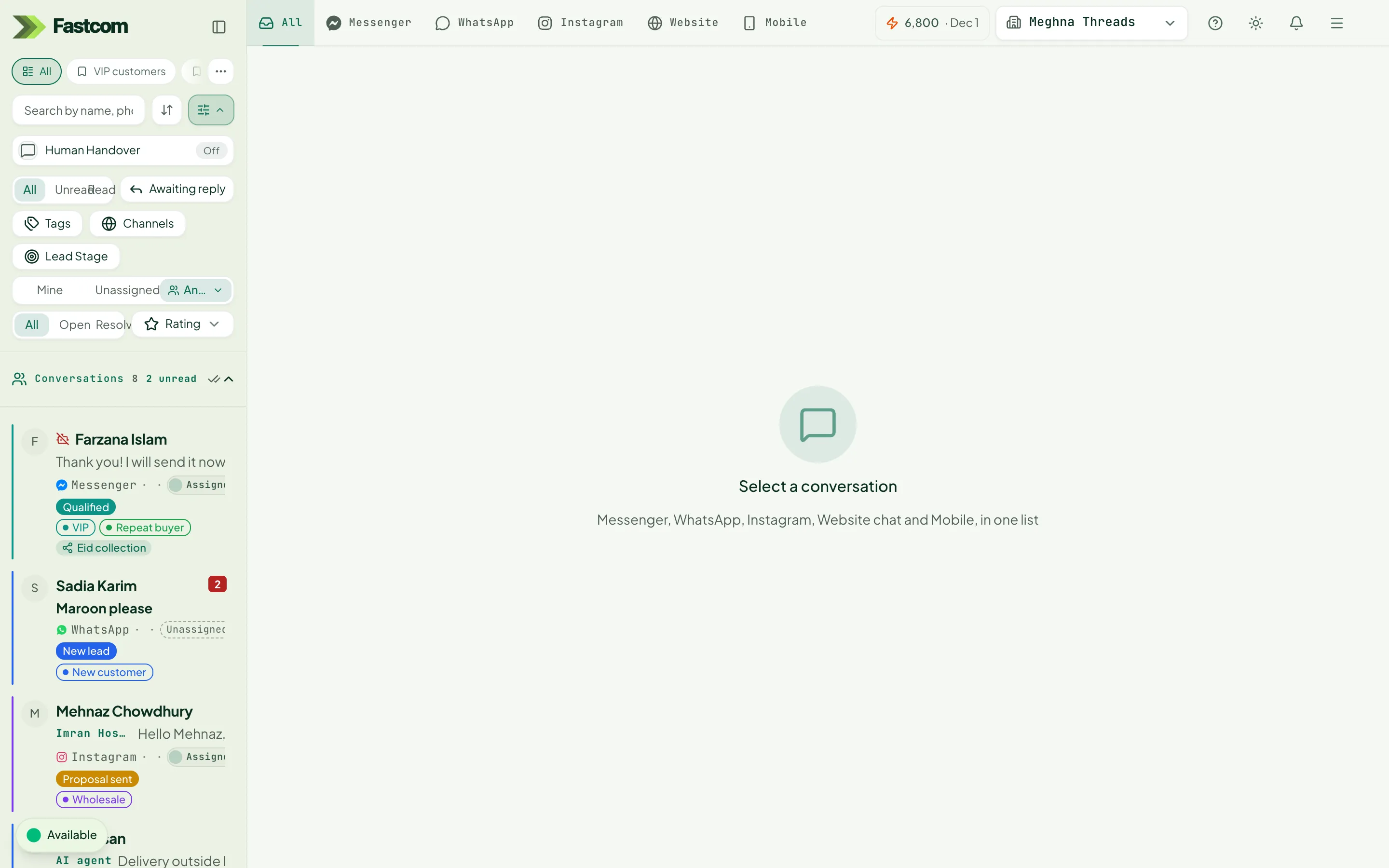
The All inbox lists every conversation from every channel you can reach, in one list. A small icon on each customer's picture shows which channel the conversation came from.
To work one channel only, click its tab at the top of the screen: Messenger, WhatsApp, Instagram, Website or Mobile. Voice and Email appear when your organization has a voice agent or a connected mailbox. A channel inbox has an account switcher in its sidebar, so you can move between your Pages, numbers or widgets.
You can also pick a channel from the Choose your inbox screen.
Choose an inboxYour role can limit the list to your own conversations. If it does, you see only conversations assigned to you, or those plus unassigned ones, depending on the role.
Search
Type in Search by name, phone, or message above the list.
The list narrows to conversations whose customer name, email, phone number or messages match.
For names and contact details, each word you type must match, in any order, so Imran Hossain finds "Hossain Imran".
Sort the list
Click the sort button next to the search box. Its tooltip shows the current order, for example Sort: Newest activity.
| Sort | What comes first |
|---|---|
| Newest activity | The most recent message. This is the default. |
| Longest waiting | The customer who has waited longest for a reply. |
| Newest waiting | The customer who most recently started waiting. |
| Oldest open ticket | The longest-unresolved request, whether you have answered it or not. |
When you pick Longest waiting or Newest waiting, Fastcom turns on the Awaiting reply filter for you. You can turn it back off. In these two orders each row shows how long the customer has waited, such as waiting 2h 15m. The time turns red after 24 hours.
Fastcom remembers your sort order for the All inbox and for the channel inboxes separately.
Filter the list
Click the Filters button (the sliders icon) next to the search box to show the filters. A number on the button counts the filters you have set.
| Filter | What it does |
|---|---|
| All, Unread, Read | Shows every conversation, only unread ones, or only read ones. |
| Awaiting reply | Shows only conversations whose last message is from the customer. |
| Tags | Shows conversations with the customer tags you pick. |
| Channels | Shows only the channels you pick. Only in the All inbox, when you can reach more than one channel. |
| Lead Stage | Shows conversations in the lead stages you pick. |
| Ad | Shows customers who came from the ads you pick. Only in Messenger and WhatsApp inboxes that have ad referrals. |
| Mine, Unassigned, Anyone | Filters by who the open ticket is assigned to. Only when assignment is on. |
| All, Open, Resolved | Filters by ticket state. Only when your organization uses one ticket per issue. |
| Rating | Shows Not rated or Unhappy conversations. Only when rating requests are on. |
When you pick tags from different tag groups, a conversation must have a tag from each group. Tags from the same group widen the list: any one of them matches.
Unhappy means the customer rated a ticket 3 or lower.
The assignee filters, except Anyone, show only conversations with an open ticket. To pick named teammates from the Anyone menu you need Inbox: Filter by teammate. See Assign conversations.
Fastcom remembers your filters for each inbox. To save a set of filters under a name, see Inbox views.
Show conversations handed to a person
Turn on Human Handover above the filters to show only conversations where the AI agent is switched off. Then pick a reason from Filter by reason, or keep All Reasons. See Take over from the AI agent.
Read and unread
Fastcom tracks what each teammate has read, not what the team has read. When you open a conversation, it is marked read for you only.
- A red number on a row counts the messages you have not read. Above 9 it shows 9+.
- A red dot means the conversation is marked unread with no new messages.
- The Conversations header shows your total unread count.
To change a conversation's state, right-click it in the list and choose Mark as read or Mark as unread.
To mark everything in the current inbox as read, click the double check mark next to the unread count in the Conversations header. Its tooltip says Mark all as read (for you), because it does not change what your teammates see.
See who has read a conversation
Below the latest messages, Seen by shows the teammates who have read up to that point, each at the furthest message they have read. Your own picture is shown first, with a colored ring. Hover over a picture to see the name and when they read it.

Change what each row shows
Organizations can hide parts of each row, such as the unread count, tags or the assignee. See Ticket Settings.
Last reviewed 29 October 2026