

Tags
Label customers and tickets so your team can filter, report on and act on them
Tag a conversation to say something about the customer, like "VIP", or tag a ticket to say what the request was about, like "Refund". Tags come from one library shared across your organization.
Customer tags and ticket tags
- Customer tags stay on the customer across all their tickets. Use them for facts about the person.
- Ticket tags belong to one . Use them for what a single request was about. A new ticket starts with no tags.
The same tag can be used both ways.
Tag a customer
You need Tags: Apply.
- Open the conversation and open the customer panel with the person icon at the top right.
- In Tags, next to Customer, click Add tag.
- Search for a tag, or click a group to see only its tags, then pick one.
To remove a tag, click the × on it. When a conversation has many tags, click + more to see them all.
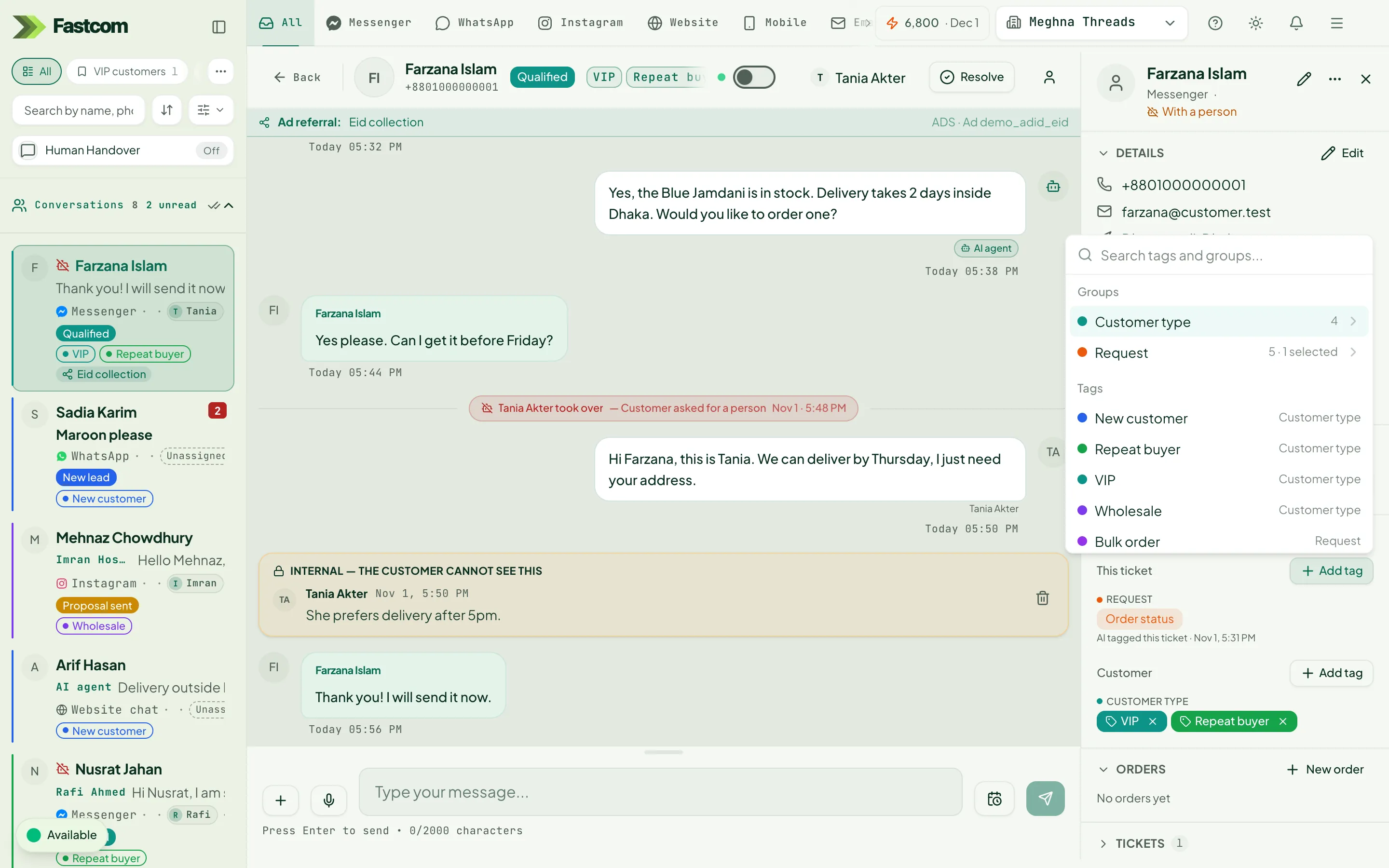
If a group allows only one tag, picking a new tag from it replaces the old one. The picker marks these groups pick one.
Tag a ticket
- Open the customer panel.
- In Tags, next to This ticket, click Add tag and pick a tag.
Add tag is greyed out when the conversation has no open ticket. To tag a past ticket, expand Tickets in the customer panel and tag it there.
Create a tag from the inbox
Type a name that doesn't exist yet in the picker, then choose where to create it. Creating a tag needs Tags: Manage.
If a tag with that name already exists, Fastcom asks you to confirm. Tags may share a name, but they look the same everywhere, and only their group tells them apart.
Manage the tag library
You need Tags: Read to open the page and Tags: Manage to change it.
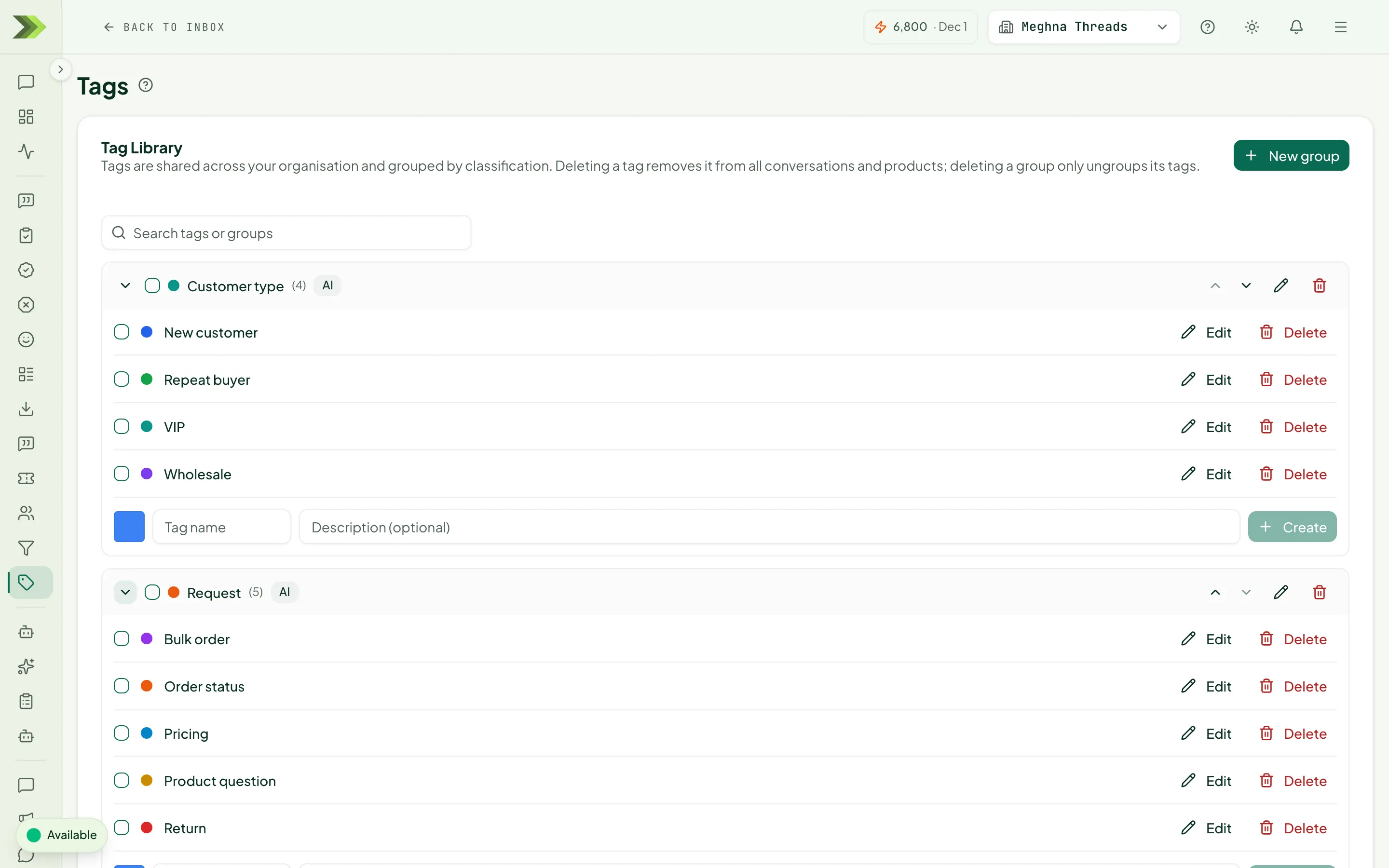
Conversations › Tags Open TagsTags are sorted into groups, such as "Query" or "Complain".
- To add a group, click New group, fill in Name, and click Create group.
- To add a tag, type its name in Tag name at the bottom of a group and click Create.
- To move several tags at once, tick them, pick a group in Move to group and click Move.
- To change a tag or group, click Edit, or the pencil on a group.
A group has these settings:
| Setting | What it does |
|---|---|
| Color | The color of the group's tags in the inbox. A colored stripe on each row in the conversation list shows its main group. |
| Selection | Multiple lets a conversation have several tags from the group. Single replaces the previous tag from the group when you add a new one. |
| Available to the AI | Lets automatic classification pick tags from this group. |
Delete tags and groups
- Deleting a tag removes it from every conversation and product. It can't be undone.
- Deleting a group doesn't delete its tags; they become ungrouped.
Use tags elsewhere
- Filter the conversation list by tags: see Find conversations.
- Save a tag filter as an inbox view.
- Keep a ticket open, or keep the AI agent off for certain customers: see Ticket Settings.
Who can do what
| Area | Owner | Admin | Member |
|---|---|---|---|
| Tags | All | Read, Manage, Apply | Read, Apply |
Last reviewed 29 October 2026