

Reply to customers
Send messages, files and voice notes from the inbox, and see the customer's details while you reply
Open a conversation and reply from the message box at the bottom of the thread. To send anything you need Inbox: Write on that channel.
Send a message
- Click a conversation in the list.
- Type in Type your message....
- Press Enter, or click the send button.
Press Shift+Enter to start a new line instead of sending. A message can be up to 2,000 characters; the counter under the box shows how many you have used. Email replies can be longer.
Sending a reply doesn't switch the AI agent off. To stop the AI agent from answering while you handle the customer, see Take over from the AI agent.
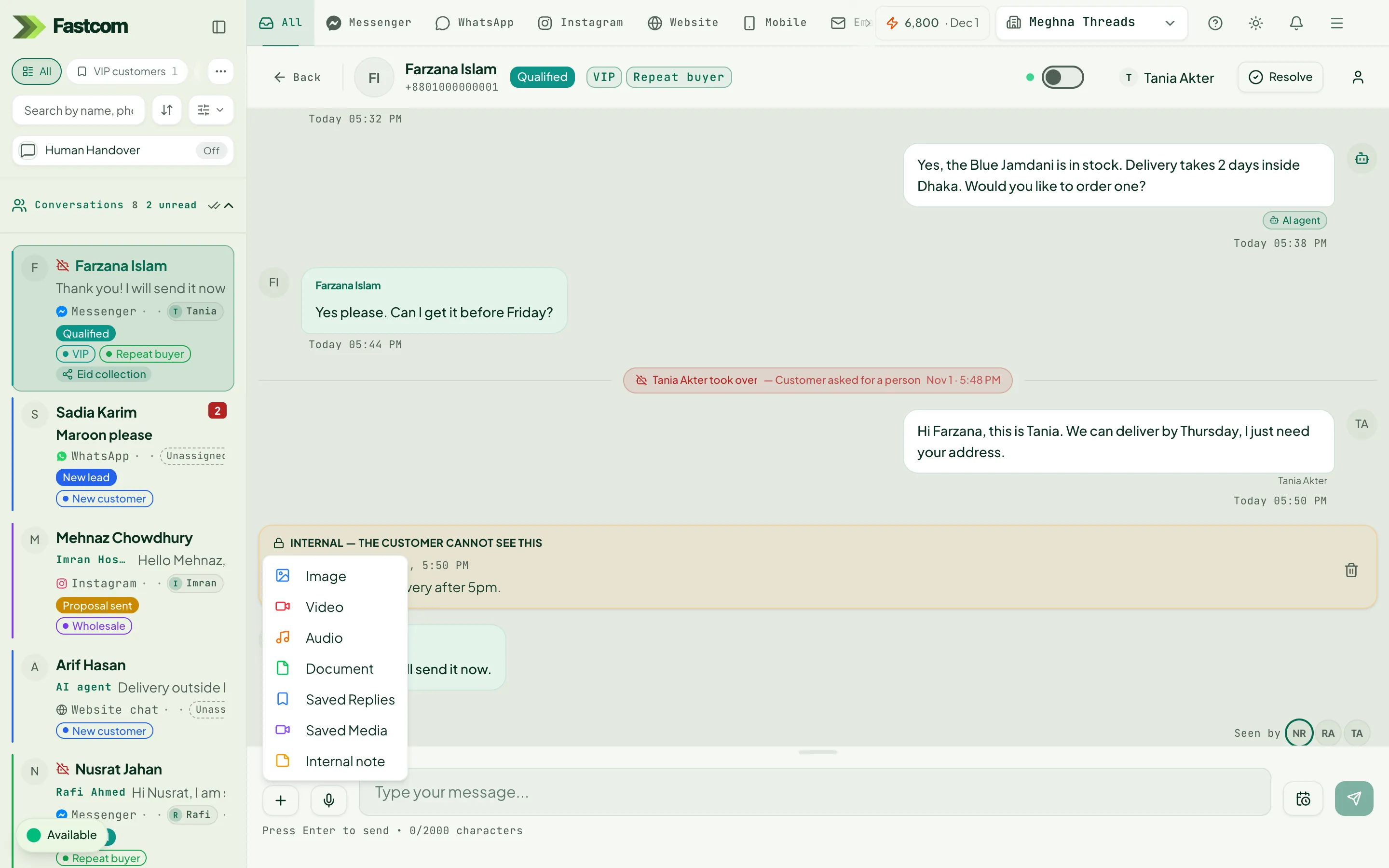
Send files
Click the + button to the left of the message box and pick Image, Video, Audio or Document. You can also drag files onto the conversation, or paste an image into the message box. Add a message to go with the files if you like, then press Enter.
From the same menu:
- Saved Replies puts a prepared answer into the message box.
- Saved Media sends a prepared audio or video clip.
- Internal note writes a note only your team can see.
See Saved replies and saved media and Internal notes.
Send a voice message
- Click the microphone button next to the + button. Allow microphone access if your browser asks.
- Speak, then press Enter or click send to stop and send.
Voice messages work on Messenger, Instagram and WhatsApp. They aren't available for website chat, the mobile app or email.
Schedule a follow-up
Click Schedule a follow-up (the calendar button beside the send button) to send a message to this customer later. Follow-ups are covered in Bots & AI.
See the customer's details
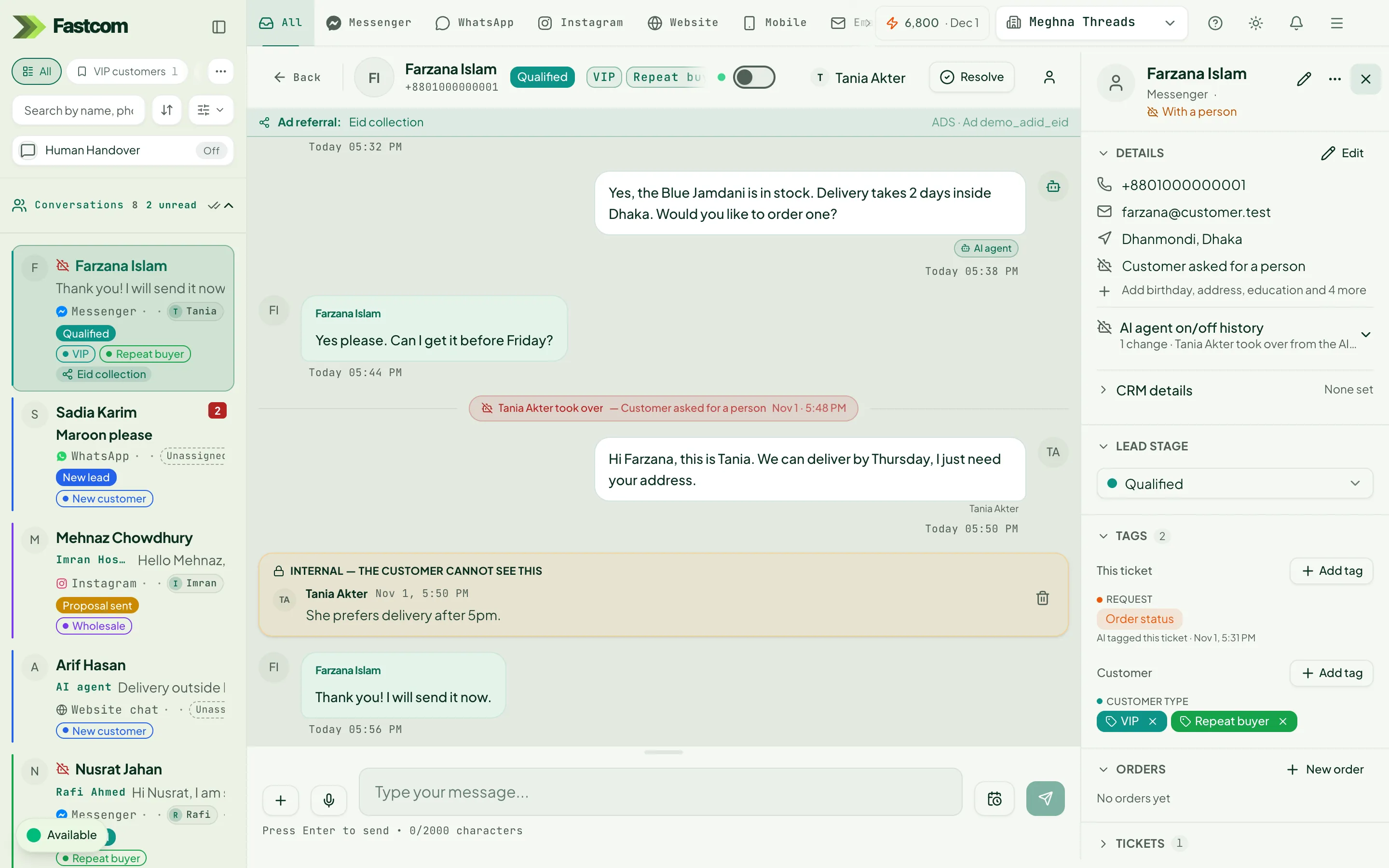
Click the person icon at the right of the conversation's header to open the customer panel. It shows who the customer is, whether the AI agent is on (AI agent on or With a person), and sections including:
- Details: phone, email, address and other contact details, plus the Human handover reason.
- CRM details: the customer's CRM fields.
- Lead stage and Tags.
- Tickets: every request this customer has made, with its status and rating.
- Notes: a note about this customer that only your team sees.
- Assignment history: who each request was assigned to.
To edit the details, click Edit in Details. You need CRM: Apply (inbox panel). See CRM and lead stages.
Copy or delete a conversation
Click the three-dot More actions button at the top of the customer panel.
- Copy conversation copies the full message history as plain text.
- Delete conversation opens a confirmation. It needs Inbox: Delete conversations.
In the confirmation, Delete conversation permanently deletes every message and the customer's data in this conversation. Delete AI memory only keeps the conversation and resets what the AI agent remembers about this customer. Neither can be undone.
Phone call transcripts
A Voice conversation is the transcript of a phone call, so it has no message box. To reply, reach the customer on another channel.
Call a customer
You need Place calls, and your organization needs a phone line.
- Someone already in the inbox: open their conversation and click Call.
- Any number: in the Voice inbox, click New call at the top of the list. Type the number and, if you like, a name. Then choose who talks (you from the browser, or an AI agent with a short brief) and click Call now.
A number you've never talked to gets a new conversation and CRM contact. A number you already have opens its existing conversation and keeps its CRM contact and name. The conversation opens while it rings, and the transcript lands in it when the call ends.
Last reviewed 29 October 2026